TL;DR
- Optimised VALORANT settings help increase performance on both PC and console.
- Settings are broadly divided into five categories.
- Low sensitivity and smart keybinds improve aim and reaction time.
- Low graphics on PC help spot enemies easily, while also boosting FPS.
- Ultimately, comfort and practice matter more than copying exact pro settings.
In a game where every split-second counts, a hesitation in your play can mean the difference between winning and losing a round. VALORANT isn’t just about aim; it’s about precision, speed, and clarity. The right settings can transform your gameplay from Bronze to Immortal. This could be maximising FPS or your keybinds, so you can get to those abilities more effectively and play at your very best.
The free-to-play shooter is now available on PC, console, and mobile; however, this feature focuses on the best VALORANT performance settings for PC and console. So, whether you’re grinding ranked or chasing the path to pro, this guide will help you get the most out of your setup.
Even small tweaks like adjusting sensitivity or disabling shadows can be the difference between spotting an enemy a split-second earlier or missing them completely. And sure, while personal comfort should always come first, incorporating some of these proven competitive settings can give you a real edge.
Best VALORANT settings for PC
PC remains the main platform for competitive VALORANT, with almost all professional tournaments and ranked grinding happening here. Riot has optimised VALORANT to run well on even mid-range PCs, but the right settings can still make a massive difference.
VALORANT PC settings are broadly categorised into five sections—General, Controls, Crosshair, Video, and Audio. Here’s a breakdown of the best settings for VALORANT in each category:
General Settings
General settings affect quality-of-life options like map rotation, UI visibility, and performance toggles. These don’t directly influence aim or shooting, but they can help with how clean and readable the game feels.
While most of the general VALORANT settings should be set based on personal preference, we recommend the following to improve your experience and performance:
Accessibility
Accessibility settings are important for visual clarity, especially in competitive matches. Pro players often stick with high-contrast colours like red or yellow since they stand out on most maps.
| Enemy Highlight Colour | Red or Yellow |
Optimal VALORANT settings for better aim
While high sensitivity allows for faster movement, low sensitivity offers better aiming control. Now, every player has a different comfort zone, so test both in the Practice Range and Deathmatch to find what suits you best. It’s best to do a lot of A/B testing for all of the settings mentioned below and tweak them to best suit your needs.
| Sensitivity: Aim | Personal preference |
| Scoped Sensitivity Multiplier | Keeping it at 1 works well in most situations, but it’s also a personal preference |
| ADS Sensitivity Multiplier | Keeping it at 1 works well in most situations, but if you use operator a lot, increasing it a bit might help |
| Invert Mouse | Off |
| Raw Input Buffer | On |
Map
The minimap is, obviously, your constant source of information. Having the right rotation and vision cone settings can help you react faster and give you far more situational awareness.
| Rotate | Personal preference, but advised to keep it fixed for beginners |
| Fixed Orientation | Based on the side |
| Keep Player Centred | Off |
| Minimap Size | Personal preference, but we recommend you keep it slightly above 1 |
| Minimap Vision Cones | On |
| Show Map Region Names | On |
Other
These toggles control visuals like blood, corpses, and tracers. Turning some of these off does reduce distractions and keeps your focus on gameplay. But keep in mind that leaving tracers and indicators on can sometimes provide extra info on enemy positioning.
| First Person Handedness | Personal preference |
| Always Show Inventory | Off |
| Player Loadouts Always Visible | Off |
| Cycle to Next/Prev Weapon Wraps Inventory | Off |
| Cycle to Next/Prev Weapon Includes Spike | Off |
| Show Corpses | Off |
| Show Blood | Off |
| Instability Indicators | On |
| Network Buffering | Minimum |
| Show Bullet Tracers | On |
| Use Team Color for Crosshair Color | Off |
| Hide User Interface In Game | Off |
| Hide Outlines and Fresnel | Off |
Controls
Using the best VALORANT controls will allow your movement to flow cleanly. When you’re entering out on a bomb site, you want to make sure you’re selecting the right abilities and swapping weapons effectively. This is an essential skill for all levels and ranks. While a lot of this is personal preference, there is a clear line that most players, even pro players, follow.
VALORANT pro settings will often bind abilities to side buttons or ultimates to a different key, so it’s easier to activate on command. We’ve suggested some keybinds that tier one pro players will use, which may need adjusting based on your preference, but it is a good standard to start with.
Actions
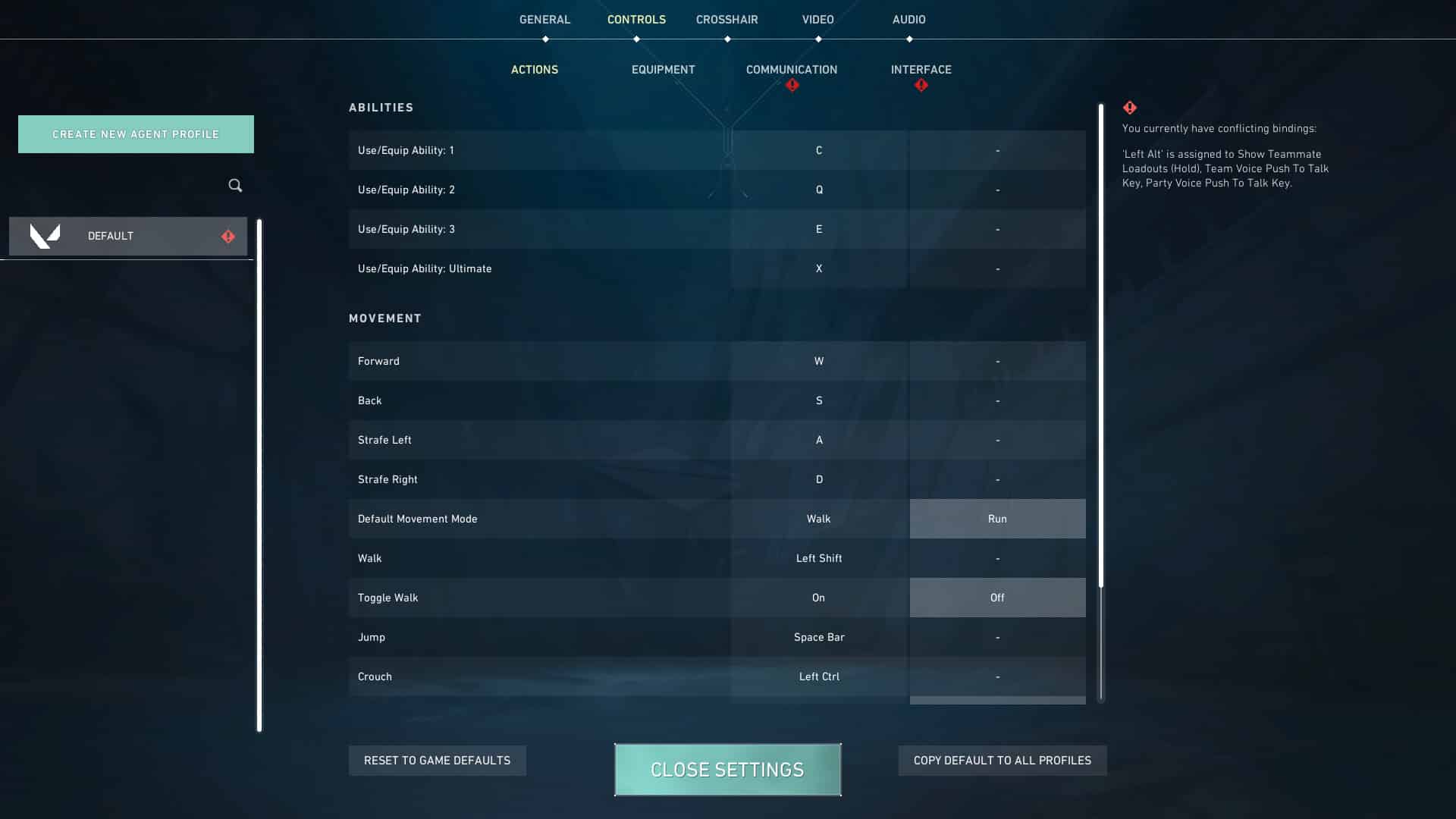
Abilities
| Use/Equip Ability: 1 | E (Mouse 4 or 5) |
| Use/Equip Ability: 2 | Q (Mouse 4 or 5) |
| Use/Equip Ability: 3 | C (Mouse 4 or 5) |
| Use/Equip Ability: Ultimate | X / F |
Movement
| Forward | W |
| Back | S |
| Strafe Left | A |
| Strafe Right | D |
| Default Movement Mode | Walk |
| Walk | Left Shift |
| Toggle Walk | Caps Lock |
| Jump | Spacebar / Mouse Wheel Down |
| Crouch | Left Ctrl / C |
| Toggle Crouch | Off |
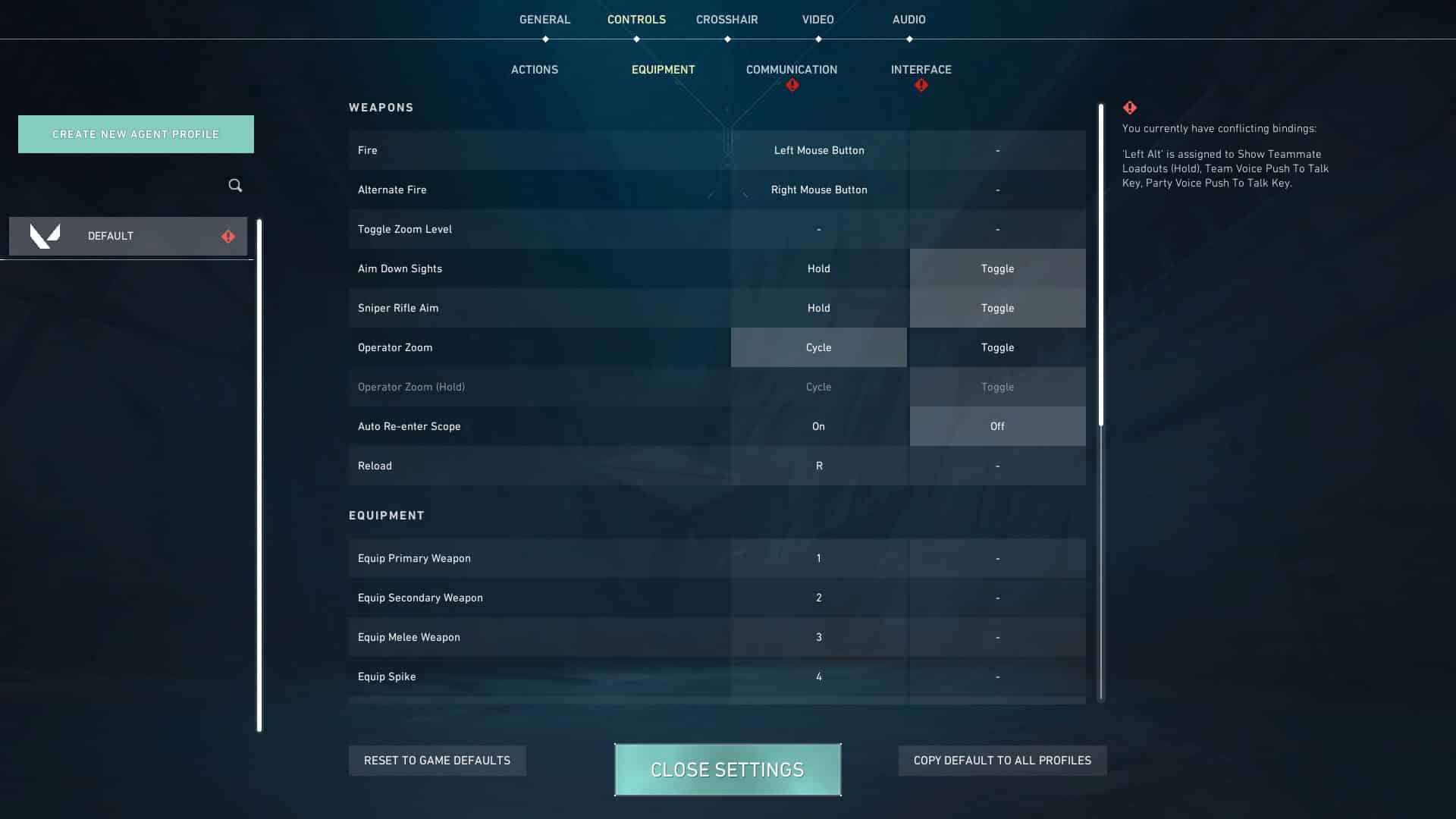
Weapons
| Fire | Left Mouse Button |
| Alternate Fire | Right Mouse Button |
| Aim Down Sights | Right Mouse Button |
| Sniper Rifle Aim | Hold |
| Operator Zoom | Cycle |
| Auto Re-enter Scope | Off |
| Reload | R |
Equipment
These binds should allow you to switch equipment quickly. Many players also bind melee or spike to multiple keys for redundancy, making sure that no misclicks happen during tense moments, which there will definitely be a lot of.
| Equip Primary Weapon | 1 |
| Equip Secondary Weapon | 2 |
| Equip Melee Weapon | 3 / F /Q |
| Equip Spike | 4 |
| Cycle to Next Weapon | Mouse Wheel Up |
| Cycle to Previous Weapon | Mouse Wheel Down |
| Drop Equipped Item | G |
| Auto-Equip Prioritizes | Strongest |
Interaction
In competitive matches, interactions like planting, defusing, or pinging need to be intuitive and fast. Even a single second of hesitation can decide a round. Binding these keys close to your movement hand often helps.
| Inspect | Y |
| Use Object | F / E |
| Use Spike (Plant or Defuse) | 4 / E /F |
| Use Item (Tap) / Open Expression Wheel (Hold) | T |
| Expression Wheel Open on Hold | On |
Interface
These HUD toggles help you manage what information you see during the game. Most pros keep only essential details visible, so that it reduces screen clutter.
| Show Teammate Loadouts (Hold) | Left Alt |
| Combat Report | N / H |
| Agent Ability Tooltip | F1 |
| Open Armory | B / F2 |
| Open Map (Toggle) | M |
| Open Map (Hold) | Caps Lock |
| Show Scoreboard (Hold) | Tab |
Best VALORANT crosshair settings
VALORANT crosshair settings offer in-depth customisation, and you can even set different crosshairs for each weapon category using advanced settings or keep it the same.
However, rather than adjusting each one manually, it is better to import a crosshair using a crosshair code. Crosshair codes may work differently depending on updates; many pros have their personal codes, which are updated after patches. It’s best to double-check the codes from the players’ official accounts or first-hand sources.
Also consider using high-contrast colours (like white, light cyan, yellow) with outline off/thin, no motion/fire error if possible, since that’s what many pros prefer in 2026 for clarity.
Here are some of the most popular VALORANT crosshair codes to try out:
- 0;s;1;P;c;5;u;2AFF00FF;o;0;f;0;0l;2;0v;2;0g;1;0o;1;0a;1;0f;0;1b;0
- 0;P;c;5;o;1;0l;2;0a;1;0f;0;1t;1;1l;0;1o;8;1a;0.172
- 0;P;c;1;o;1;0l;3;0o;5;0a;1;0f;0;1b;0
- 0;P;c;5;h;0;0l;3;0o;0;0a;1;0f;0;1b;0
- 0;P;c;1;o;1;0l;3;0o;5;0a;1;0f;0;1b;0
- 0;P;c;5;d;1;0l;2;0o;2;0a;1;0f;0;1b;0
VALORANT performance settings
If you have a high-end setup, you can play VALORANT at max settings without losing FPS; however, we still recommend playing on low-quality settings, which will make it easier to spot enemies. Also, ensure that there is no limit set on FPS, unless you are experiencing screen tearing, and that you have a stable internet connection.
Nvidia Reflex Low Latency is supported on Valorant and recommended to reduce system latency; set it to On + Boost if using NVIDIA hardware and if you want lower input lag.
General
| Display Mode | Fullscreen |
| Resolution | 1920 x 1080 (16:9) / 1400 x 1050 (4:3) |
| Aspect Ratio Method | Letterbox |
| Limit FPS on Battery | Off |
| Max FPS on Battery | Off |
| Limit FPS in Menus | Off |
| Max FPS in Menus | Off |
| Limit FPS in Background | On |
| Max FPS in Background | 30 |
| Limit FPS Always | No, unless you are facing screen tearing |
| NVIDIA Reflex Low Latency | On + Boost |
Best VALORANT graphic settings
| Multithreaded Rendering | On |
| Material Quality | Low |
| Texture Quality | Low |
| Detail Quality | Low |
| UI Quality | Low |
| Vignette | Off |
| VSync | Off |
| Anti-Aliasing | None or MSAA 2x |
| Anisotropic Filtering | 2x or 4x (even 8x is fine if you have a great setup) |
| Improve Clarity | On |
| Bloom | Off |
| Distortion | Off |
| Cast Shadows | Off |
VALORANT stats

Keeping Client FPS and Network RTT visible during matches gives you real-time awareness of performance issues (just in case) so you can adjust accordingly.
Performance
| Client FPS | Show Both |
| Server Tick Rate | Hide |
| Total Frame Time | Hide |
| Idle Time | Hide |
| CPU (Game) Time | Hide |
| CPU (Render) Time | Hide |
| CPU (RHI) Time | Hide |
| GPU Render Time | Hide |
| Used Physical Memory | Hide |
| CPU Wait GPU Time | Hide |
| Available Physical Memory | Hide |
Input Latency
| Game Latency (CPU) | Show Both |
| Render Latency (GPU) | Hide |
| Present Latency (CPU) | Hide |
| Game to Render Latency (CPU+GPU) | Hide |
| Network RTT + Processing Delays | Hide |
Network
| Network RTT | Show Both |
| Network RTT Jitter | Hide |
| Packet Loss | Show Both |
| Incoming Packet Loss | Hide |
| Outgoing Packet Loss | Hide |
| Packets Lost (Total) | Hide |
| Packets Receive Rate | Hide |
| Packets Send Rate | Hide |
| Uploaded Data | Hide |
| Out Packet Size | Hide |
Audio
Sound is obviously super important in VALORANT. Footsteps, reloads, and ability cues provide just as much information as the minimap. Proper audio settings make it easier to hear enemies and react before you might even see them.
Keep most of the VALORANT audio settings enabled to communicate effectively with teammates. Moreover, the agent’s voice lines will give you sound cues of enemy abilities, helping you dodge or counter them.
Voice Over
| Gameplay | Enabled |
| Agent Flavor | Enabled |
| Tactical Callouts | Enabled |
| Automated Tactical Callouts | Enabled |
| Announcer | Enabled |
| Maxbot Gameplay VO | Enabled |
| Maxbot Flavor VO | Enabled |
Best VALORANT settings for console
VALORANT for console launched in mid-2024 for PlayStation 5 and Xbox Series X|S, with controls tailored to controllers. While Riot kept most settings similar to PC, console players do need to adjust some settings, like deadzones, vibration, and trigger sensitivity, for the best experience.
Most of the VALORANT console settings are similar, so we’ll just list the ones that are unique to the platform.
Advanced Settings
Walking while in focus will slow down your movement, so it will be hard to act quickly, and vibration, on the other hand, will ruin your aim, so it’s best to keep them turned off.
| Walk While in Focus | Off |
| Vibration | Off |
| Left/Right Trigger Deadzone | 0.01 |
Keybinds
| Action | PlayStation 5 controller | Xbox controller |
|---|---|---|
| Fire | R2 | RT |
| Focus / Sniper Scope | L2 (Hold) | LT (Hold) |
| Aim Down Sights (ADS) | L2 + R3 | LT + RS |
| Ability 1 | L1 | LB |
| Ability 2 | R1 | RB |
| Ability 3 | R3 | RS |
| Ultimate | L1 + R1 | LB + RB |
| Equip Melee | L3 | LS |
| Equip Secondary Weapon | Triangle (△) | Y |
| Reload / Activate / Use | Square (□) | X |
| Jump | Cross (×) | A |
| Crouch (Toggle) | Circle (○) | B |
| Comm Wheel / Ping | D-Pad Up | D-Pad Up |
| Drop Equipped Item | D-Pad Left | D-Pad Left |
| Plant / Defuse / Equip Spike | D-Pad Down | D-Pad Down |
| Inspect / Spray Wheel | D-Pad Right (Hold) | D-Pad Right (Hold) |
VALORANT settings used by pros

Every professional player uses different settings, including sensitivity, keybinds, resolution, and more. Pros spend countless hours finetuning their setups, so their preferences often become community standards. The most consistent trend is low sensitivity and clean graphics settings. Generally speaking, these are among the most common VALORANT pro settings used in competition in 2026.
Mouse Settings
| DPI | 400-1600 DPI depending on personal preference |
| Sensitivity | 0.32-0.4 |
| Scoped Sensitivity | 1 |
| eDPI | 320 |
| Polling Rate | 1000 Hz |
| Windows Sensitivity | 6 |
| Raw Input Buffer | On |
Keybinds
| Walk | Left Shift |
| Crouch | Left Ctrl |
| Jump | Space Bar / Mouse Wheel Down |
| Use Object | F |
| Equip Primary Weapon | 1 |
| Equip Secondary Weapon | 2 |
| Equip Melee Weapon | 3 |
| Equip Spike | 4 |
| Use/Equip Ability 1 | C / Mouse Button 4 or 5 |
| Use/Equip Ability 2 | Q / Mouse Button 4 or 5 |
| Use/Equip Ability 3 | E / Mouse Button 4 or 5 |
| Use/Equip Ultimate Ability | X / F |
Map Settings
| Rotate | On |
| Fixed Orientation | Based on Side |
| Keep Player Centred | On |
| Minimap Size | 1.1 to 1.25 |
| Minimap Zoom | 0.9 |
| Minimap Vision Cones | On |
| Show Map Region Names | Always |
Best VALORANT video settings
| Resolution | Native Resolution (Typically 1920×1080) |
| Aspect Ratio | 16:9 |
| Display Mode | Fullscreen |
| Multithreaded Rendering | On |
| Material Quality | Low |
| Texture Quality | Low |
| Detail Quality | Low |
| UI Quality | Low |
| Vignette | Off |
| VSync | Off |
| Anti-Aliasing | MSAA 2x |
| Anisotropic Filtering | 4x |
| Improve Clarity | Off |
| Bloom | Off |
| Distortion | Off |
| Cast Shadows | Off |
Conclusion: Practising consistently is the key to success
Having the best VALORANT settings will not only help you get the best performance out of VALORANT but also improve your gameplay. That said, being consistent, communicating effectively with your team, and practising regularly are key to truly getting better. Also, it’s not necessary to use the exact settings we’ve suggested; instead, go with what feels most comfortable for you, with a lot of A/B testing and comparisons.
In 2026, the VALORANT meta, hardware, and monitor tech have improved: 240Hz+ and even 360Hz monitors are more accessible, so prioritise refresh rate over ultra-high graphics if you can’t do both. Also, many recent updates have improved performance even on low or mid-end GPUs, which means you can afford a few visual upgrades if you’re balanced on FPS and visibility. Always test these after patches, since the performance can shift with engine optimisations.
FAQs
What are the best VALORANT settings?
VALORANT’s best settings vary depending on personal preference, but we recommend having low sensitivity, low graphics quality, and Full HD resolution, especially if you are a beginner.
What settings do pro VALORANT players use?
Typically, VALORANT pro settings include low mouse sensitivity, low graphics settings, and 4:3 resolution. This is mainly personal preference, due to older monitors not supporting 16:9, but since newer players have joined the scene, we are seeing a lot more 16:9 or 21:9 even. There is no competitive advantage to 4:3, but there is to refresh rates such as 240 or 360Hz, which is almost essential in today’s competitive environment
Should I limit FPS in VALORANT?
In short, yes, but only in specific situations, for example, if your FPS is much higher than your refresh rate, this will reduce fluctuations and make frame pacing more consistent. Or if your PC is having overheating issues or microstutters, you can lower your FPS and bring the stress down from your PC, while not optimal for your game, it can help in the long run with more consistency
What aim sensitivity do VALORANT pros use?
Pro VALORANT players usually set aim sensitivity to a low number for better control; however, some use high sensitivity to obtain flexible movement. Common pro eDPI range is ~200–400; 800 DPI with 0.32–0.40 sensitivity is a frequently used combo.
Is 30 FPS playable for VALORANT?
While it is technically playable at 30 FPS, your experience will be subpar, and you will be at a significant competitive disadvantage. Generally, you want to aim for the FPS equivalent to your Hz, so if you have a 144Hz monitor, you should aim for at least 144 FPS. This will give you the best competitive advantage in-game.
What Settings Does TenZ use?
TenZ is one of the most popular players in VALORANT, and his settings are very sought after. He plays DPI 1600, Sensitivity 0.24, Scoped Sens 1 ADS Sens, eDPI 384, Hz 1000. His Pro VALORANT settings are a good standard to use if you are struggling to decide and if you want to go the extra mile you can use his crosshair code (0;s;1;P;c;5;u;2AFF00FF;o;0;f;0;0l;2;0v;2;0g;1;0o;1;0a;1;0f;0;1b;0)