TL;DR
- With a huge collection of in-game settings, every Apex Legends player should adjust their options to get a leg up in online play.
- Finding the perfect sensitivity in Apex is key to mastering recoil control.
- Important environmental sounds should be prioritised in the volume settings.
- This list will walk you through all the best settings for Apex Legends.
The best Apex Legends settings grant players a mix of crisp visuals and a high frame rate. Field of view, brightness, and sensitivity are all values that each individual may want to adjust to their personal needs, while turning up gameplay volume to max is an essential step for every top-tier competitor.
Esports Insider has created this Apex Legends best settings guide to explain how to set up your options in the best way for competitive play, so let’s look at how you can gain an advantage in Respawn’s futuristic FPS.
Best gameplay settings in Apex Legends

Gameplay settings have a variety of important values within them, so let’s take a quick look at the options that’ll enhance your performance for competitive play in Apex Legends. Keeping Always Run set to On offers convenience, while Health and Ammo Voicelines give you important reminders.
| Interact Prompt Style | Compact |
| Button Hints | On |
| Crosshair Damage Feedback | Off |
| Damage Numbers | Stacking |
| Enemy Healthbar | Enabled |
| Ping Opacity | Faded |
| Enemy Highlight | Enabled |
| Obituaries | On |
| Minimap Rotation | On |
| Weapon Auto-Cycle on Empty | On |
| Always Sprint | On |
| Sprint Control | Press (If Always Sprint is off) |
| Auto-Run | Off |
| Jetpack Glide Control | Hold |
| Mantle Boost Activation | Jump |
| Mantle Boost UI | Hide Prompt |
| Incoming Damage Feedback | 3D |
| Taking Damage Closes Deathbox or Crafting Menu | Off |
| Health and Ammo Pop-Ups | Limited |
| Health and Ammo Voicelines | On |
| Arsenals Map + HUD Icons | Maximum |
| Offscreen Portraits | Off |
| Hop-Up Pop-Up | Off |
| Streamer Mode | Off |
| Anonymous Mode | Disabled |
| Usage Sharing | Enabled |
| Performance Display | On |
| Communication Filter | Individual Preference |
| Tutorial Systems | On |
| Reticle | Default |
| Laser Sight | Default |
| Colour Blind Mode | Off |
| Subtitles | Off |
| Subtitle Size | Normal |
| Enable Accessible Chat Features | Off |
| Convert Incoming Voice to Text Chat | Off |
| Play Incoming Text Chat as Speech | Off |
Best Apex Legends crosshairs and HUD – Mouse & keyboard settings

Your crosshair and HUD offer various advantages, like smoother recoil control after adjusting the sensitivity values. Below you’ll find our picks for the best Apex settings PC players should use in 2025.
| Mouse Sensitivity | 4 (This can be adjusted based on preference) |
| ADS Mouse Sensitivity Multiplier | 1 |
| Per Optic ADS Sensitivity | Off |
| Mouse Acceleration | Off |
| Mouse Invert | Off |
| Clamp Mouse Cursor to Game Window | Off |
| Lighting Effects | Off |
Best Apex Legends controller settings and sensitivity

For players who use controllers, the controller settings are an essential stop. You should consider adjusting your sensitivity and a few other values to help you compete effectively against mouse and keyboard players. This is a list of the best Apex Legends controller settings.
| Button Layout | Based on Preference |
| Stick Layout | Default |
| Interact/Reload Button | Tap to Use and Reload |
| Crouch Button | Hold |
| Aim Button | Hold |
| Survival Slot Button | On |
| Adaptive Triggers | Off |
| Trigger Deadzones | None |
| Menu Cursor Speed | 50% |
| Look Sensitivity | 3 (Default) |
| Look Sensitivity (ADS) | 2 (Low) |
| Per Optic ADS Sensitivity | Off |
| Response Curve | Classic |
| Look Deadzone | None |
| Movement Deadzone | Small |
| Inverted Look | Off |
| Vibration | Off |
| Custom Look Controls | Off |
Best Apex Legends graphics settings
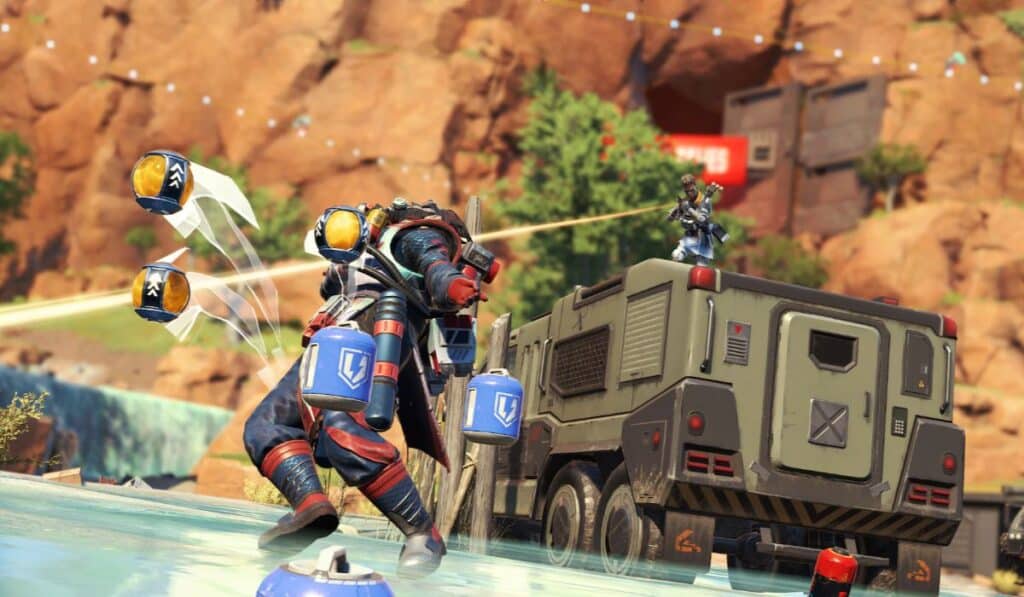
Depending on your PC, it may be important to reduce unnecessary graphics settings so that Apex can run at a higher frame rate. In-game speed is usually more important than good-looking textures, though there are still a few best video settings for Apex Legends that offer an advantage. Here’s a breakdown of how to set up your settings to maximise visuals and frame rate.
| Display Mode | Full Screen |
| Aspect Ratio | Native (16:10) |
| Resolution | Native (1,920 x 1,200) |
| Brightness | 60% |
| Field of View | 110 |
| FOV Ability Scaling | Disabled |
| Sprint View Shake | Minimal |
| UI Layout Mode | Auto |
| V-Sync Disabled | Disabled |
| AMD Anti-Lag 2 | Disabled |
| Adaptive Resolution FPS Target | 0 |
| Anti-Aliasing | TSAA |
| Texture Streaming Budget | Low |
| Texture Filtering | Bilinear |
| Ambient Occlusion Quality | Disabled |
| Sun Shadow Coverage | Low |
| Sun Shadow Detail | Low |
| Spot Shadow Detail | Disabled |
| Volumetric Lighting | Disabled |
| Dynamic Spot Shadows | Disabled |
| Model Detail | Medium |
| Map Detail | Low |
| Effects Detail | Low |
| Impact Marks | Disabled |
Best Apex Legends audio settings
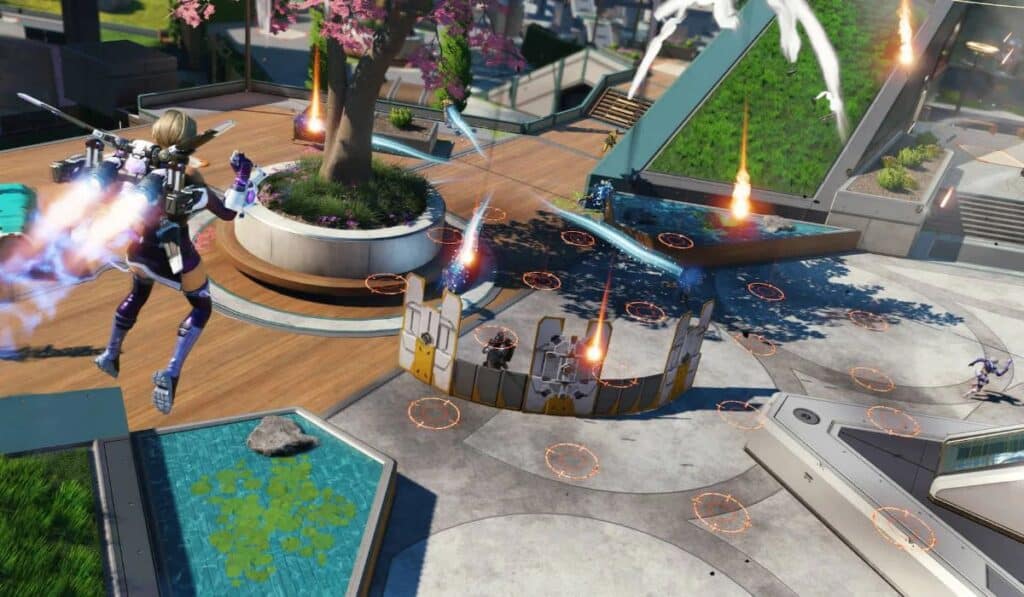
The best audio settings in Apex focus on enhancing the volume of environmental surrounding sounds like footsteps and gunshots, while minimising unnecessary noise that might distract you mid-match, such as music.
| Master Volume | 100% |
| Output Device | System Default |
| Audio Mix | Focused |
| Output Configuration | Device Default Surround |
| Voice Chat Input Device | System Default |
| Voice Chat Record Mode | Push to Talk |
| Open Mic Record Threshold | 1,300 |
| Incoming Voice Chat Volume | 100% |
| Sound Effects Volume | 100% |
| Dialogue Volume | 40% |
| Music Volume | 0% |
| Lobby Music Volume | 50% |
| Gameplay Volume when Spectating | 50% |
| Emote Preview Sound | On |
| Sound in Background | On |
Top competitive Apex Legends settings

The top Apex Legends settings pair optimised recoil control with audio settings that allow you to hear your enemies coming from around the corner. It’s nice to have your visuals set to maximum, but it’s often better to reduce them slightly to increase your frames per second. If you want to play Apex Legends on a competitive level, then switching up your settings is the first step towards success.
Conclusion
Apex Legends is a huge battle royale that has had many years to add to and adjust its settings menu. As such, there are dozens of values that may need attention before you jump into the higher ranks of competitive Apex Legends.
Our guide provides a breakdown of the best Apex settings for each set of options, allowing you to compete on an even playing field with opponents who optimise their settings.
FAQs
What are the best Apex Legends settings?
The best settings in Apex offer loud environmental sound effects and a high frame rate, often at the cost of reducing your graphics settings.
What Apex Legends settings do pros use?
Pro Apex players test their recoil with various guns, then adjust their sensitivity as they see fit for maximum recoil control. Using the Apex Legends pro settings can help you compete with high-ranked opponents.
What video settings improve visibility in Apex Legends?
Brightness and field of view can both be adjusted to improve visibility in Apex Legends. The best Apex Legends video settings improve your visibility without decreasing the frame rate.
What are the best graphics settings for Apex Legends performance?
Settings like volumetric lighting should often be set to their minimal values to improve performance, alongside other non-essential video options.
What Apex settings help with recoil?
Adjusting your sensitivity is key to minimising recoil in Apex Legends.