TL;DR
- If you’re looking for the best CS2 settings for FPS, you will want to set your resolution to Native ratio, and a lower resolution and lower quality settings.
- If you’re hoping for better graphic fidelity, then capping your frames and adjusting your graphics settings will help.
- Those looking for the best CS2 audio settings might find turning on L/R isolation and Perspective Correction useful.
- When adjusting crosshair settings, ensure that it can be seen on all backgrounds.
- Altering your CS2 settings won’t make you instantly better at the game, but it will give you more of a chance, especially if you follow pro setups.
With Counter-Strike 2 now established as Valve’s flagship competitive shooter, the smallest gains matter more than ever. From professional tournaments to high-level FACEIT or Premier play, the difference between winning or losing can be a matter of 10-20 fps. Optimising your in-game settings is not just about preference; it’s essential to have the best settings for CS2.
When loading CS2 for the first time, it can be quite overwhelming, and you may ask yourself, ‘What’s the best way to configure my game?’ You may have a lower-spec PC and want to get every frame per second you can. In this guide on the best CS2 settings, we will have you covered regardless of your needs.
Best CS2 settings for FPS
If you’re looking for the best CS2 settings for FPS, then you may be sacrificing some level of quality to achieve the highest frames possible. We’ve been sure to go over both the CS2 best video settings you should select, as well as the Advanced video settings, so you can maximise your frames and maybe give you the competitive edge you need to see those enemies clearer or be able to spot utility flying through the air.
CS2 Video Settings optimisation explained
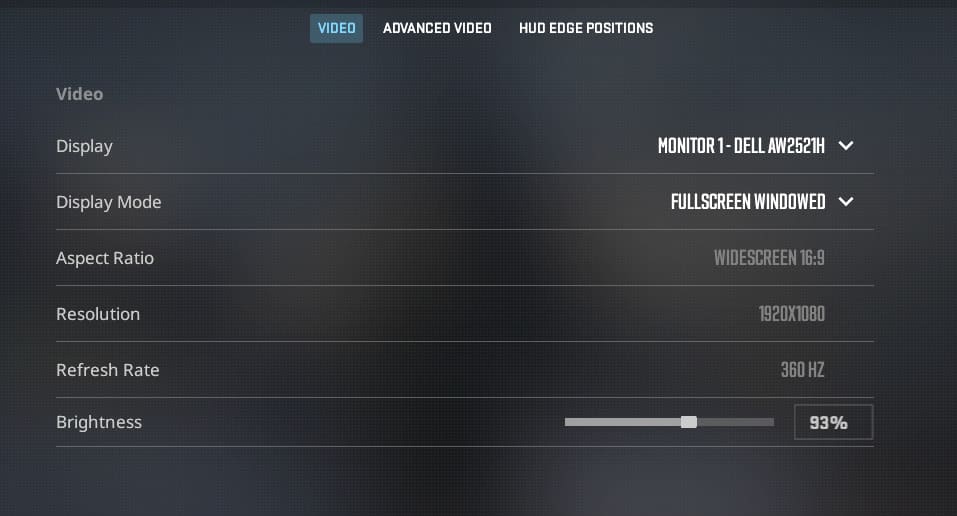
| Setting | Option | Details |
|---|---|---|
| Display Mode | Depending on circumstances | If you’re playing on a resolution other than native, then be sure to play Fullscreen for best CS2 performance. |
| Aspect Ratio | Preference | This will be down to personal preference based on your screen size. Common aspect ratios are 16:9 and 21:9 (ultrawide). However, there is no native support for 32:9 (super-ultrawide). |
| Resolution | 1920 x 1080 | Even if your machine supports 4K, having 1080p resolution will make for a higher frame rate as your machine can work harder to produce frames instead of the extra pixels required for 4K. |
| Refresh Rate | Highest available option | You want the highest refresh rate that your monitor allows to ensure you can take advantage of those higher frame rates. But make sure you can reach that in FPS as well, or you’ll get input lag and screen tearing. |
| Brightness | 110% | While this can also just be preference, there are some dark areas of the game, and the little boost of brightness may be what you need to spot everyone; it has no bearing on FPS. |
| Laptop power savings (if applicable) | Disabled | Power-saving settings can hinder your machine’s performance to allow for better battery economy. Ensure to turn this off if you want higher frames. |
Advanced video settings optimisation explained
| Setting | Option | Details |
|---|---|---|
| Boost player contrast | On | Makes player models stand out slightly. |
| V-Sync | Off | This can cause input lag, so better to turn it off unless you have it optimised for your game. |
| Maximum FPS in-game | Set as required | If you want to cap your frames to stop your PC or Laptop from overheating, then you can do so here. If you just want the best possible frames, you can leave this uncapped. |
| Maximum FPS in menus | Cap at 60 | There’s no need to overwork your machine for menus. |
| Current Video Values preset | Set as required based on your machine | Ultimately, the lower quality you opt for here, the higher frames you’ll ge,t but in turn, the graphics will look poor. The better your machine, the higher you can go here without sacrificing too much. The game will highlight what settings are recommended based on your system. |
| Multisample anti-aliasing mode | CMAA2 | Turning this off makes the game look rather bad and doesn’t increase performance, so it’s better to leave it on. |
| Global Shadow Quality | Low | Having lower shadow quality can improve FPS. However, you may not be able to see shadows as well, giving you a competitive disadvantage. |
| Dynamic Shadows | All | Ensure this is set to all, or you may miss important in-game shadows that give away enemy locations. |
| Model / Texture detail | Medium | If you opt for Low here, you will get higher frames, but certain assets like blood splatters will get blurry, so Medium is a good middle ground. |
| Texture filtering mode | Anisotropic 4x | This has a limited effect on frames; opting for this option should prevent any laggy feelings you may get with other options. |
| Shader detail | Low | The higher you set this, the better the game will look, as it shows how light interacts with the surroundings and effects. For higher frames, opt for the lowest option. |
| Particle detail | Low | Again, the higher you set this, the more realistic different particles like explosions will look. Opt for low to ensure higher frames. |
| Ambient occlusion | Off | This option shows how ambient light interacts with the setting. Turning this on will majorly impact your frames, so leaving it off is the best option here. |
| High dynamic range | Performance | HDR will increase your quality but will hinder CS2 performance, so be sure to turn it off if you’re looking for the best frames. |
| FidelityFX super resolution | Off | This setting renders your game at a lower resolution and then upscales it, which sounds great in theory but can lead to blurry visuals. |
Best CS2 graphics settings
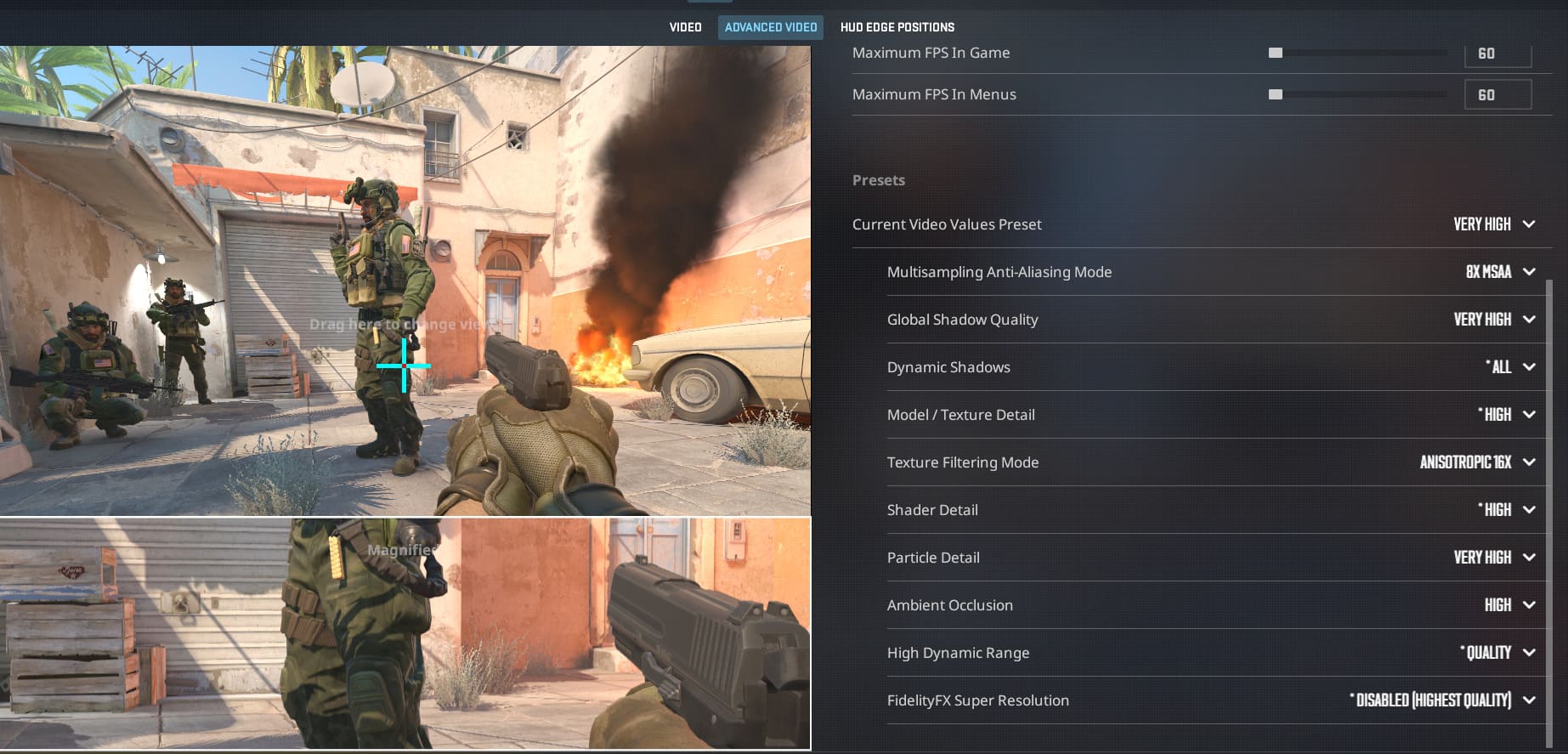
If you’re looking for the best CS2 video settings for graphical fidelity and quality over FPS, then you can adjust your settings according to those outlined below. It’s worth noting that to have the very best graphics while still maintaining a playable frame rate, you need a high-end machine. For details on what each setting adjusts, see the tables above.
Video settings:
- Display mode: Fullscreen
- Aspect ratio: 16:9
- Resolution: Highest supported by your monitor and machine
- Refresh Rate: Highest supported by your monitor and machine
- Brightness: 110%
Advanced video settings:
- Boost player contrast: On
- V-sync: Off
- Maximum FPS in game: Cap as required
- Maximum FPS in menus: 60
- Current video values preset: Custom
- Multisample anti-aliasing mode: 8X MSAA
- Global shadow quality: Very high
- Dynamic shadows: All
- Model / Texture detail: High
- Texture filtering mode: Anisotropic 16X
- Shader detail: High
- Particle detail: Very High
- Ambient occlusion: High
- High dynamic range: Quality
- FidelityFX Super resolution: Disabled
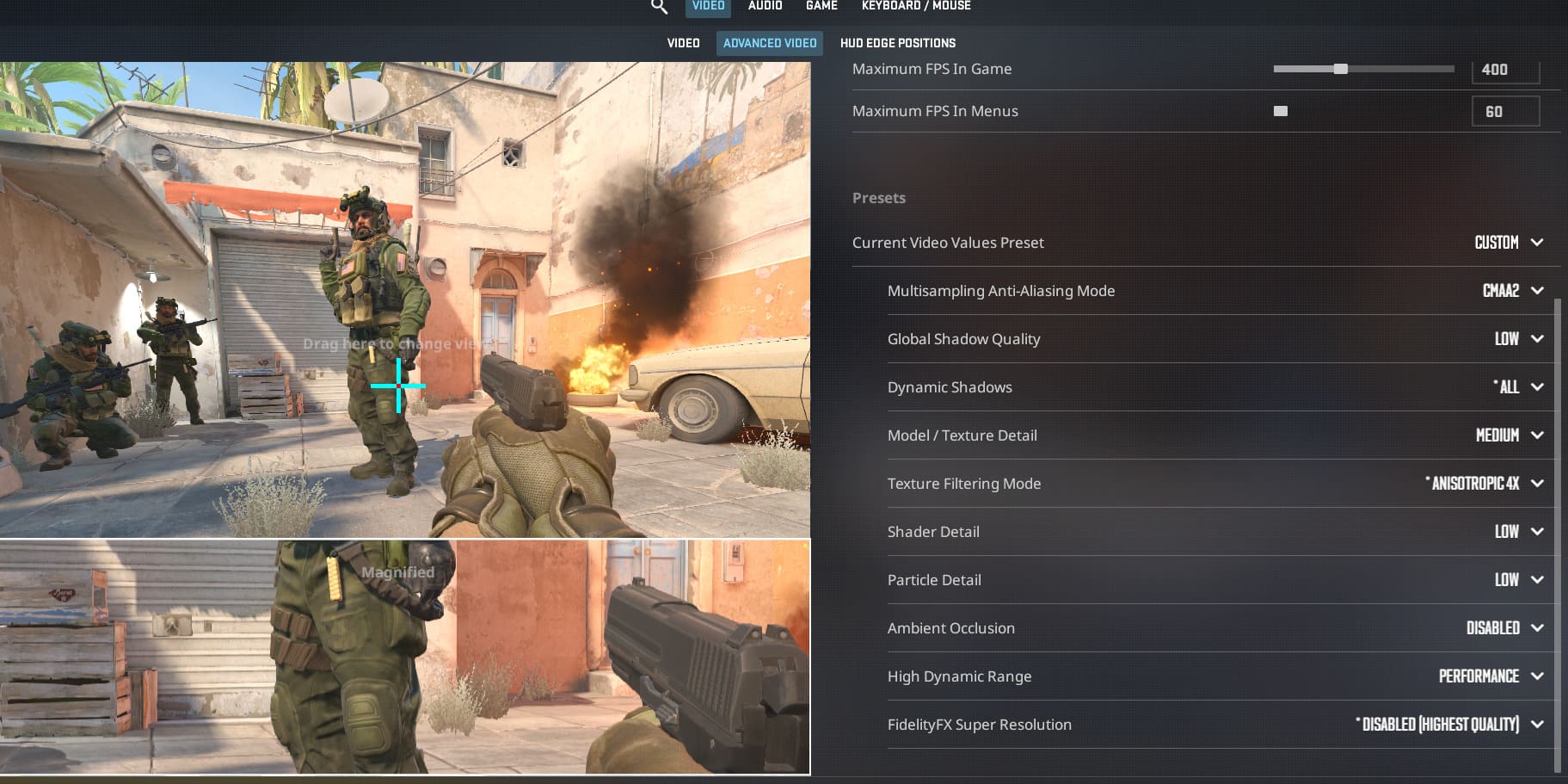
If you are looking for CS2’s best graphics settings to a point where frames aren’t as important to you, then you can cap your game at 60 fps (or any other limit as required). Your machine won’t be working as hard to generate more frames and can instead prioritise quality. This isn’t necessarily recommended, as you’ll be at a disadvantage to players with far higher framerates, but it’s an option you could consider if you want the best-looking experience.
Best CS2 audio settings
The best CS2 audio settings will be heavily based on your personal preference, but here are some key recommendations we suggest to enhance your gameplay. We heavily recommend that you play with headphones, as using speakers will make it next to impossible to tell where sounds are coming from.
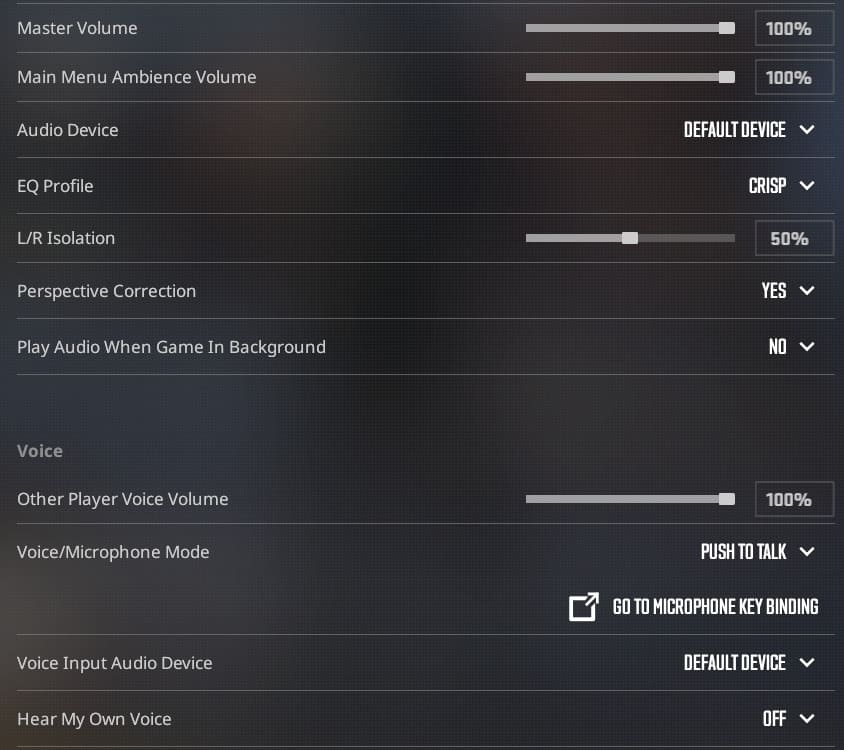
Our recommended CS2 audio settings:
- EQ Profile: Crisp – this will help with sound localisation as well as reduce muffling in-game.
- L/R isolation: 50% – Adjusting this setting will help you determine where sounds are coming from more easily, as they will be isolated in your earcups. 100% will make it so there is no ‘middle’, making it harder to tell when sounds are coming from in front or behind you. 0% will merge all sounds, which will sound more natural but make it harder to pinpoint where sounds might be coming from.
- Perspective correction: Yes – this will adjust sounds so you can more accurately tell where they are coming from.
- Voice/Microphone mode: Push to talk – Nobody wants to hear a constant stream of noise coming from your mic, be sure to turn on push to talk and only use your mic when needed.
Best CS2 crosshair settings
The best CS2 Crosshair settings depend on what you want to do. If you’re a sprayer, you may want a wider gap; if tapping is your thing, a solid dot crosshair will be for you. The only real standard that’s needed is to ensure it’s visible on all backgrounds, choosing a vibrant colour, and if you’re struggling, you may need an outline around it.

Conclusion
Finding the best settings for CS2 is about understanding what you want from the game and how your hardware can support it. Whether you’re chasing those extra few FPS for that competitive edge or looking to have the best possible visual experience, seeing all the textures and details. It’s not about copying these one-to-one but using them as a baseline and fine-tuning for your needs. Ultimately, optimising your CS2 settings is about putting yourself in the strongest position every time you load into a match.
FAQs
What are the best CS2 settings?
The best CS2 settings depend on what you’re prioritising, whether it’s performance, in which case you should turn most settings down to low, especially ambient occlusion. Keeping V-Sync off, except for shadows that you need for your competitive edge, if you want to optimise for that. But players with higher-end PCs can afford to increase the quality settings and keep their framerate stable.
What are the best aim settings for CS2?
The most important thing to adjust for your aim is your CS2 crosshair settings. This determines where you will shoot; it should be clearly visible over all backgrounds. It’s completely personal preference from there; some players prefer a dot crosshair, some like a large, wide crosshair. Apart from that, it’s your mouse sensitivity and DPI, making sure it’s comfortable enough to track from there.
How to set up CS2 like a pro?
Many pro players have adjusted their CS2 settings to feel more in line with CS:GO, since they’re so familiar with the previous title. You may want to opt for stretched resolution, as 1280×960 is the most used resolution in pro play. However, playing a 4:3 resolution offers no real benefit and actually makes you see less. It is more ideal to stick to 16:9 unless you’re already used to 4:3.