TL;DR
- Battlefield 6 has a ton of settings to adjust how the game plays
- Graphic settings on PC are robust and modular
- The controller gets a dedicated settings tab for more precise control over how it works
- Consoles also get plenty of options to customise how the game looks
- Battlefield 6 has optimised performance that doesn’t require many changes.
Dice’s new military shooter is out, and players are pleased with its performance both on PC and consoles. You might still want to tweak some Battlefield 6 settings to make the experience better and more tailored to your tastes. The good news is that Battlefield doesn’t leave older rigs behind, but it can still squeeze extra frames depending on the settings.
The developers have done a remarkable job of including numerous settings in Battlefield 6. From graphical elements to controls and from screen effects to vehicle functionality, there is a lot that can be customised. Having almost every option available to change is great, but it can also become overwhelming to experiment and dial everything in.
The best settings for Battlefield 6 are those that make the controls feel natural to you. The less friction between you and the controls, the better you’ll be able to shoot opponents. The goal of this BF6 settings guide is to explain essential settings so you can see, shoot, and move better in the game.
Battlefield 6: Best graphics settings
Dice includes many graphic and display options in Battlefield 6. You’ll be able to fine-tune the game to run better on your PC and hopefully increase frame rates, drop stuttering, and lower sudden FPS drops in demanding areas. The Battlefield 6 graphics guide will target the usual suspects that tank performance. Of course, if you have a capable rig, you can crank up everything and get excellent in-game performance.
Graphics quality settings
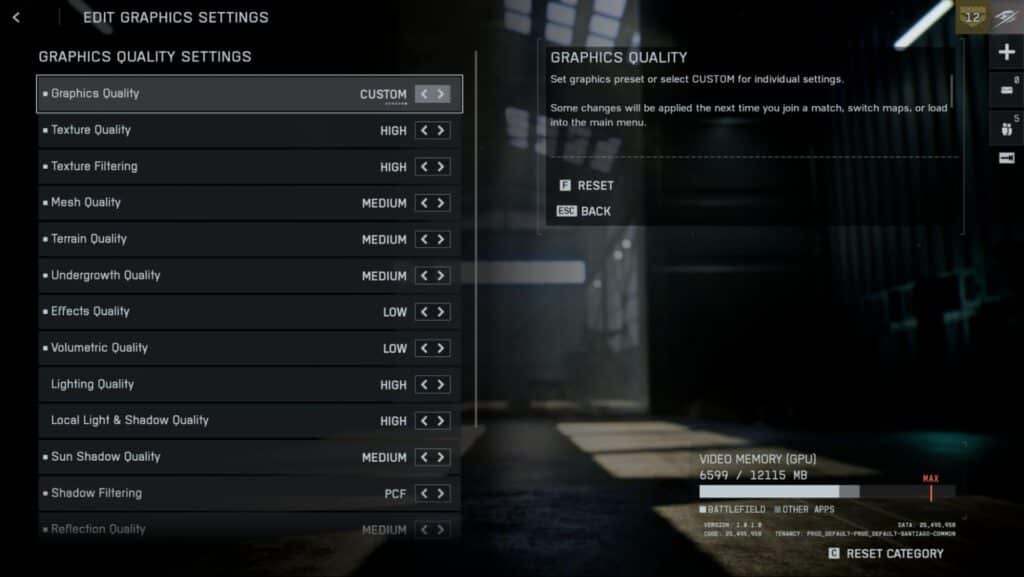
| Option | Setting | Info |
|---|---|---|
| Texture Quality | Depends on VRAM | 6GB: Low-Medium, 8GB: High, 12GB: Ultra, 16GB+: Overkill. |
| Texture Filtering | High | Takes almost no resources but looks great. |
| Mesh Quality | Medium | Level of detail for the environment. |
| Terrain Quality | Medium-High | Improves ground quality; adjust according to your PC. |
| Undergrowth Quality | Medium-High | Improves foliage quality, adjust according to your preference. |
| Effects Quality | Low | BF6 has beautiful effects. Keep this high if you can. |
| Volumetric Quality | Low | Impacts fog and smoke. |
| Lighting Quality | Depends on VRAM | Low: 6-8GB, High: 12GB+ |
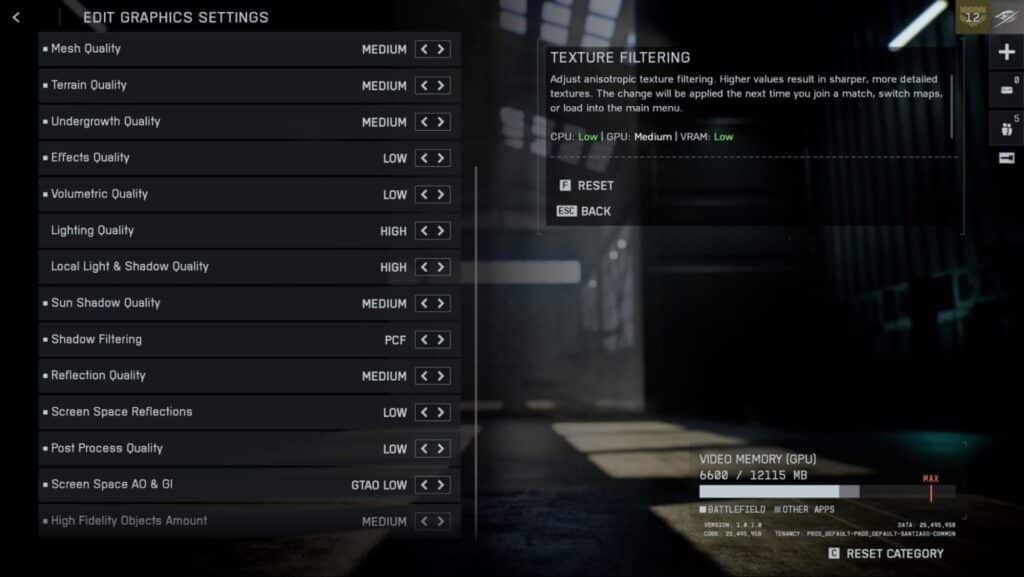
| Option | Setting | Info |
|---|---|---|
| Local Light & Shadow Quality | Medium-High | Adjusts shadows and local lights in all maps. |
| Sun Shadow Quality | Medium | Medium is the sweet spot, giving the best performance. |
| Shadow Filtering | PCF | Can use PCSS, but that takes a lot of system resources. |
| Reflection Quality | Medium | Medium strikes a good balance between performance and quality. |
| Screen Space Reflections (SSR) | Low | Changes the reflective surface quality. It isn’t important in a multiplayer-focused game. |
| Post Process Quality | Low | Little to no impact on performance. Improves post-processing effects like DOF and motion blur. |
| Screen Space AO (Ambient Occlusion) & GI (Global Illumination) | GTAO Low | Best in terms of performance. SSGI is pretty but demanding. |
| High Fidelity Objects Amount | Medium | Increases the visual quality of player characters and animations. |
Advanced graphics settings
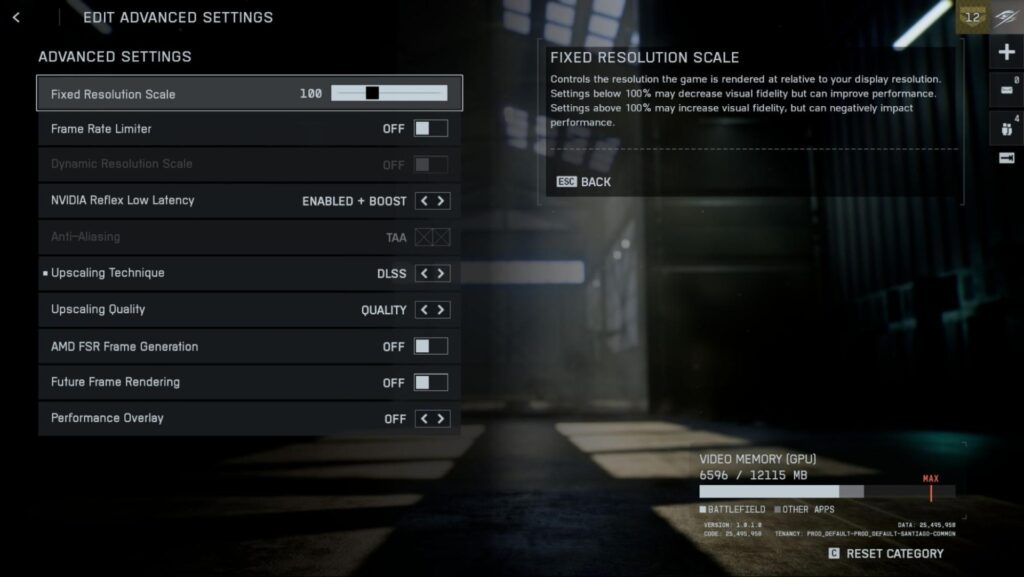
| Option | Setting | Info |
|---|---|---|
| Fixed Resolution Scale | 100% | Lowering it will improve performance, but lower visuals. |
| Frame Rate Limited | Off | Uncapped frame rate improves input responsiveness |
| Dynamic Resolution Scale | Off | Lowers resolution to maintain performance.It might be too distracting. |
| Nvidia Reflex Low Latency | Enabled + Boost | Use it with Nvidia graphics cards. Improves latency. |
| Anti-Aliasing | Off | Not compatible with upscaling. |
| Upscaling Technique | DLSS or FSR | Depending on your GPU, go with DLSS or FSR and get improved performance |
| Upscaling Quality | Quality Mode | Looks the best. |
| AMD FSR Frame Generation | Off | Turn this on if you have an AMD graphics card. |
| Frame Generation | On | As performance is already good, Frame Gen will improve performance without noticeable input lag. |
| Future Frame Rendering | Player Choice | More smoothness at the cost of input lag. |
| Performance Overlay | Off | The overlay might be distracting. |
How to set up
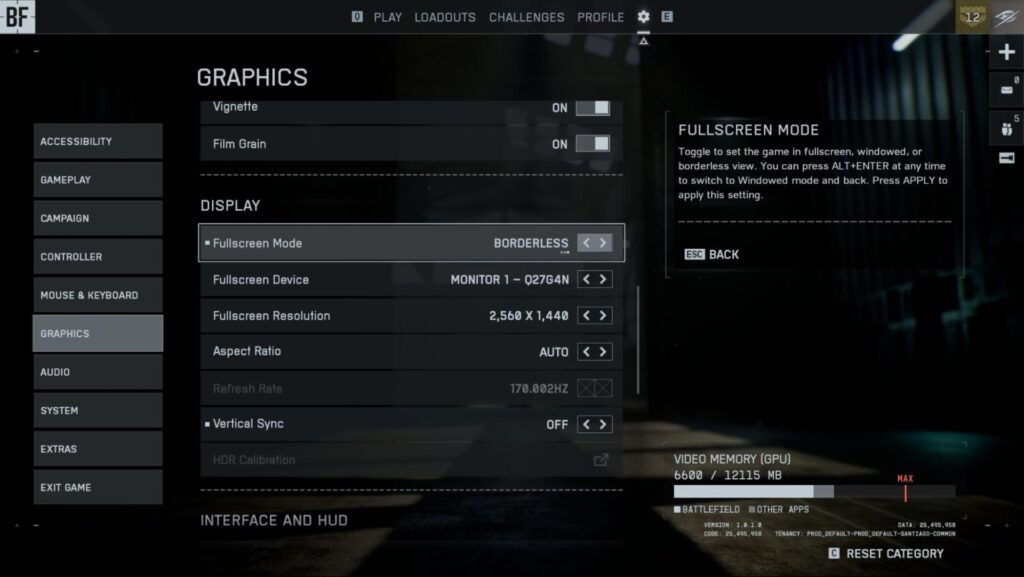
To set Battlefield 6 graphics settings, head to Settings and then Graphics. Test out the performance to see if it’s satisfactory. I recommend setting Performance and Graphics presets to Custom, as we want to change individual settings. Set the Sharpness below 50%, but you can gradually change to see what looks best. Pick Borderless Fullscreen Mode, which will make you Alt+Tab out of the game easily.
Battlefield 6: Best controller settings
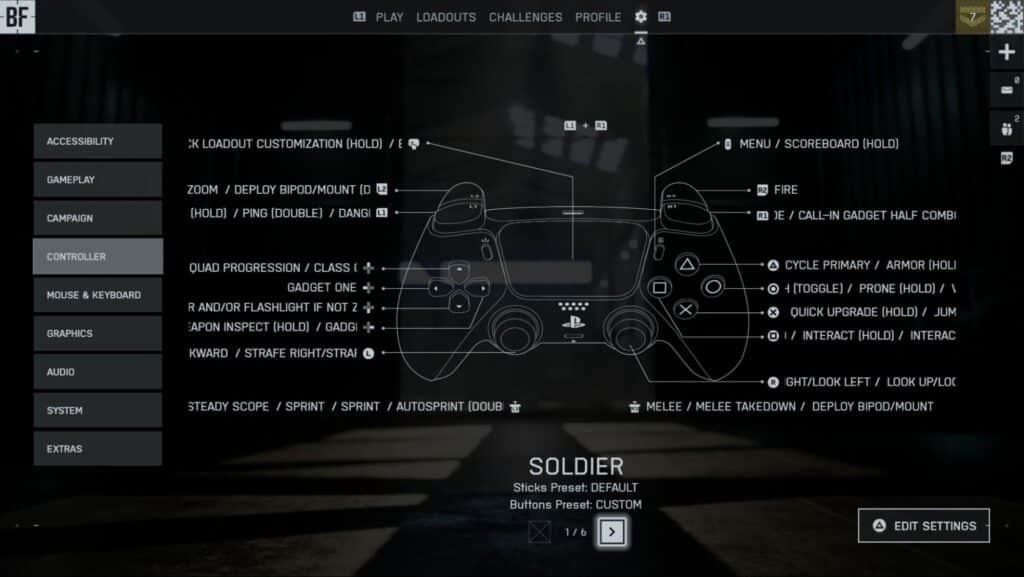
Battlefield 6 works great with a controller. Even if you prefer the accuracy of a mouse and keyboard, I still recommend keeping a controller for aerial combat. Dice has done a great job of including many controller settings, making the game handle much better once you nail them down. Here are the best Battlefield 6 controller settings:
Aim
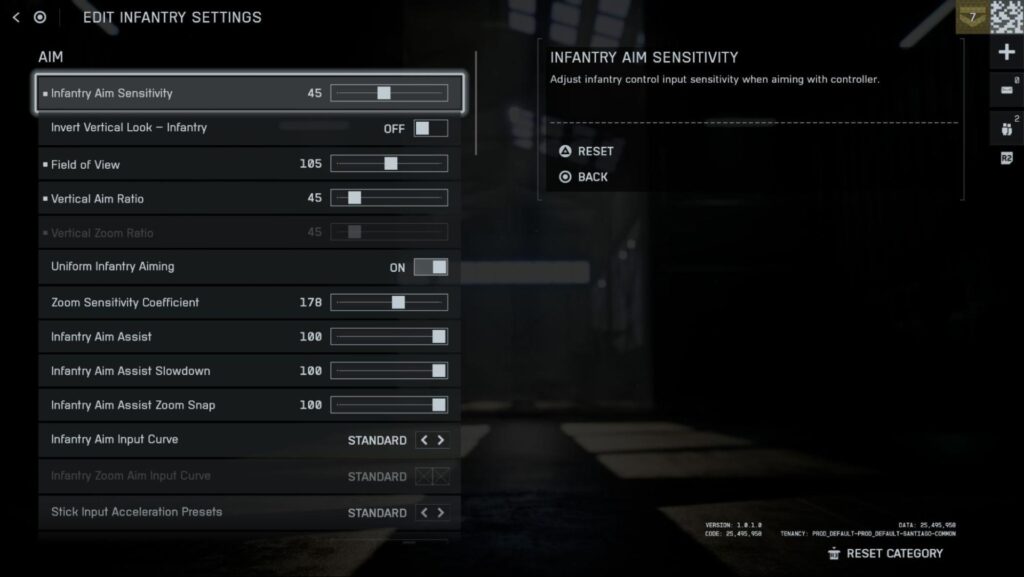
| Setting | Value |
|---|---|
| Infantry Aim Sensitivity | 45 |
| Field of View | 100-110 |
| Vertical Aim Ratio | 45 |
| Vertical Zoom Ratio | 45 |
| Uniform Infantry Aiming | On |
| Zoom Sensitivity Coefficient | 178 |
| Infantry Aim Assist | 100 |
| Infantry Aim Assist Slowdown | 100 |
| Infantry Aim Assist Zoom Snap | 100 |
| Soldier Aim Input Curve | BF1, BF4 |
| Infantry Zoom Aim Input Curve | BF1, BF4 |
| Stick Input Acceleration Presets | BF2042 Old, BFV |
| Aiming Left / Right Acceleration | 50 |
Movement
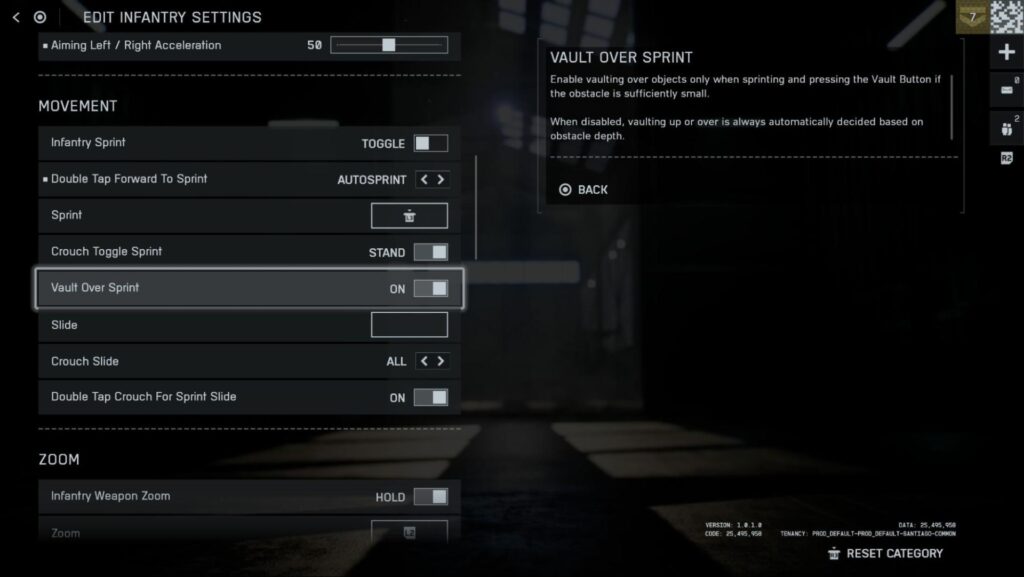
| Setting | Value |
|---|---|
| Infantry Sprint | Toggle |
| Double Tap Forward Sprint | Autosprint |
| Sprint | Click Left Joystick |
| Crouch Toggle Sprint | Stand |
| Vault Over Sprint | On |
| Slide | – |
| Crouch Slide | All |
| Double Tap Crouch For Sprint Slide | On |
Zoom
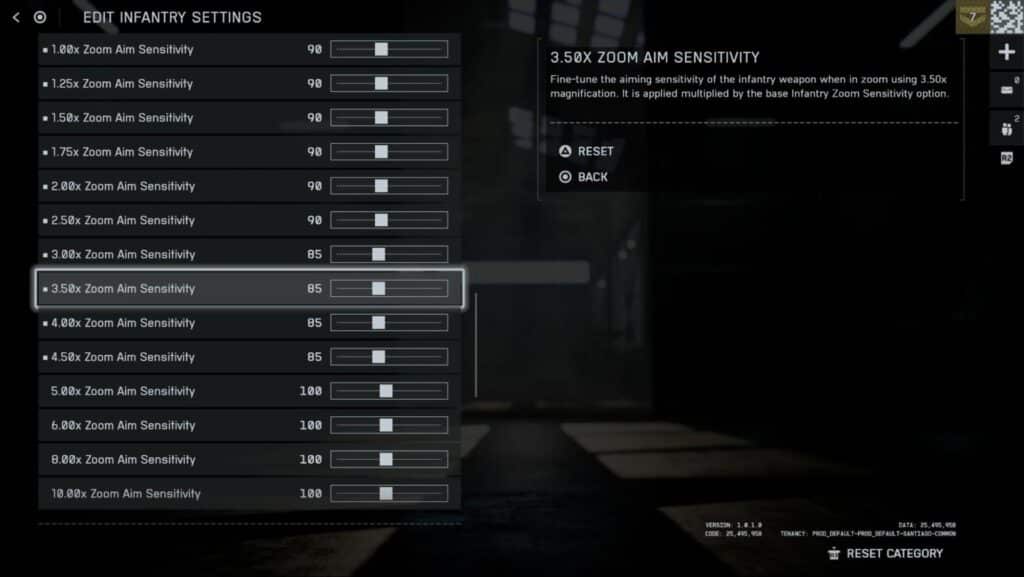
| Setting | Value |
|---|---|
| Infantry Weapon Zoom | Hold |
| Zoom | User preference |
| Steady Scope: | Hold |
| Steady Scope: | User preference |
| Infantry Zoom Aim Sensitivity | 90 |
| 1.00x Zoom Aim Sensitivity | 90 |
| 1.25x Zoom Aim Sensitivity | 90 |
| 1.50x Zoom Aim Sensitivity | 90 |
| 1.75x Zoom Aim Sensitivity | 90 |
| 2.00x Zoom Aim Sensitivity | 90 |
| 2.50x Zoom Aim Sensitivity | 90 |
| 3.00x Zoom Aim Sensitivity | 85 |
| 3.50x Zoom Aim Sensitivity | 85 |
| 4.00x Zoom Aim Sensitivity | 85 |
| 4.50x Zoom Aim Sensitivity | 85 |
| 5.00x Zoom Aim Sensitivity | 100 |
| 6.00x Zoom Aim Sensitivity | 100 |
| 8.00x Zoom Aim Sensitivity | 100 |
| 0.00x Zoom Aim Sensitivity | 100 |
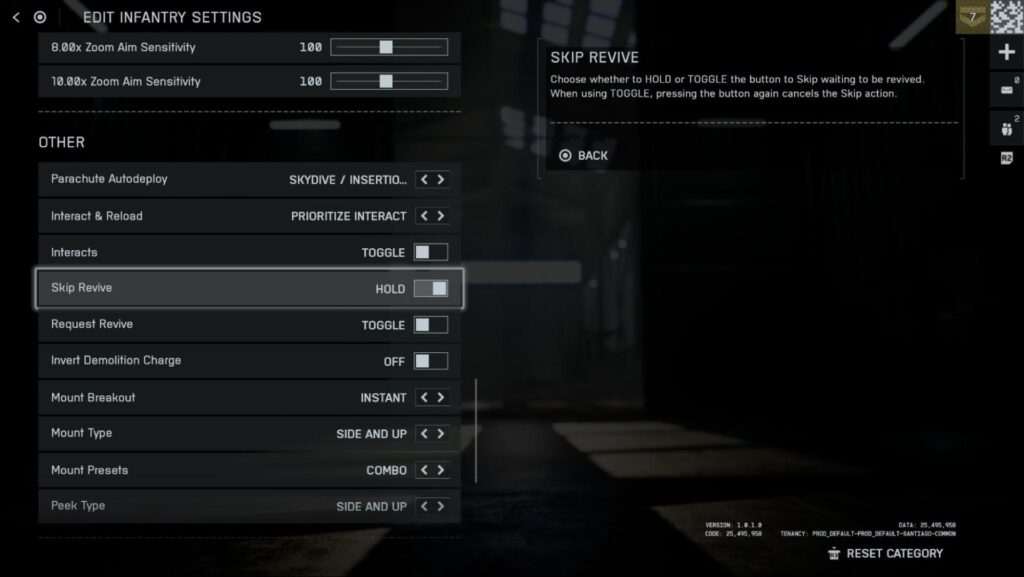
Other
| Setting | Value |
|---|---|
| Interact & Reload | Prioritise Reload |
| Skip Revive | Hold |
| Request Revive | Hold |
| Invert Demolition Charge | Off |
| Mount Breakout | Instant |
| Interacts | Toggle |
How to Set Up:
To set up controller settings, head over to General Settings, then Controller, and press Edit Settings. I recommend starting from the Infantry section as it’s the most important one. The Infantry settings change how your character moves, aims, and shoots in the game.
I also recommend turning off vibration completely. Set Center Deadzone to 5 and move up if you feel any drifting. As for Controller Triggers, set the Deadzone to 0 and Max Input Threshold to 100. These settings will make everything feel more responsive and make moving across huge maps easier.
Battlefield 6: Best console settings
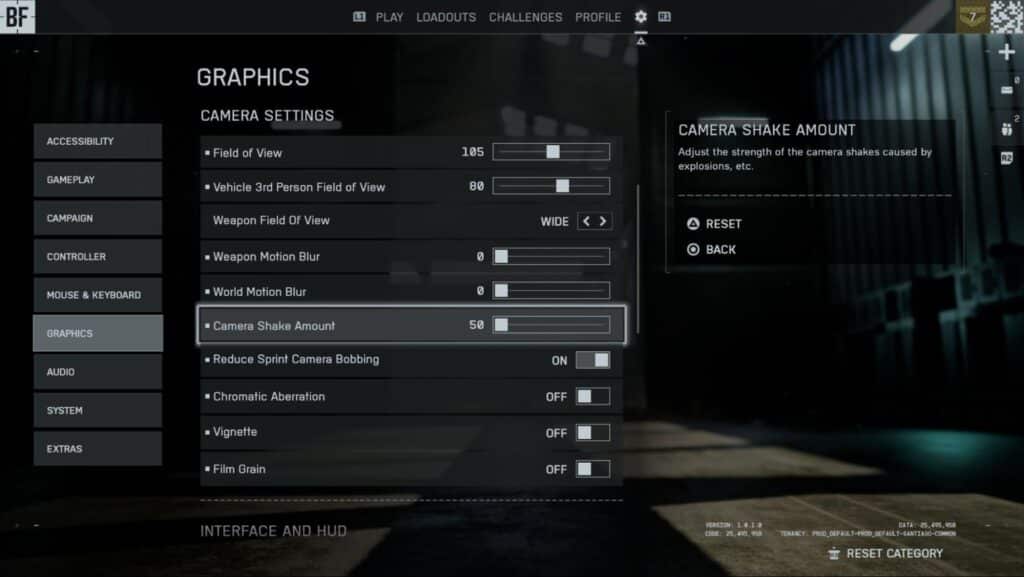
Battlefield 6 has plenty of settings to tweak on consoles, too. While not as granular as PC settings, these options can help you see, aim, and take down enemies better. Here are the best Battlefield 6 console settings I recommend:
- Set Performance Preset to Auto (Performance) as it will automatically prioritise performance.
- Adjust the Field of View to be around 105; that’s my personal sweet spot for FPS. You can adjust according to your preference.
- The Vehicle 3rd Person Field of View can be cranked to above 80, the higher the better. You can easily spot sneaky mine throwers trying to destroy your hard-earned Battlefield ride.
- Put the Weapon Field of View to Wide.
- I recommend turning down Weapon and World Motion Blur to 0. It’s a multiplayer game; we don’t usually need these here.
- I also set the Camera Shake Amount to 0 because I like to aim without distractions.
- You can also Reduce Sprint Camera Bobbing to On, especially if you are prone to motion sickness.
- Turn off Vignette, Film Grain, and Chromatic Aberration to get the cleanest view of the game.
- Increase the Minimap Size to Medium; it gives all the info without being too distracting.
Conclusion
Dice gave us plenty of Battlefield 6 settings to play with. Previous Battlefield games lacked many popular settings, but BF6 settings are finally on par with COD. Fans moving from Call of Duty to Battlefield will appreciate the option to make the gameplay exactly as they like.
FAQs
What are the best graphics settings for Battlefield 6?
Adjusting the settings that keep the game running smoothly is the best way to customise in Battlefield 6.
What are the best console settings for Battlefield 6?
Settings that make the game look clear and, in return, let you acquire targets easily are the best on console.
What are the best controller settings for Battlefield 6?
Battlefield 6 controller settings are great; you can adjust almost every aspect of the controller. Settings that help reduce friction between the controls and your intended actions are the best.