TL;DR
- Adjusting your PUBG settings is a great way to gain an edge over your competition, regardless of the platform you play on.
- There are dozens of settings to change in PUBG, spread across multiple categories.
- Graphics, audio, and sensitivity are the most important settings to change in PUBG.
- Footsteps and other player-created sounds should be as loud as possible.
PUBG: Battlegrounds is a challenging game to master, but with the right settings selected, any competitor can become a battle royale victor in no time. Footsteps, maximum frames-per-second, and aim sensitivity can all make or break your experience in competitive play, so they should be adjusted if you’re seeking an advantage.
Whether you want to switch up your audio settings or visual quality, we’ve compiled a list of the best settings for PUBG that offer the strongest possible performance for the average player.
Note: The best PUBG settings may vary based on your platform and individual system. Our guide offers a starting point for players with mid-range PCs.
Best PUBG audio settings

It’s important to take a close look at your audio settings in PUBG to ensure you can hear important game sounds like footsteps. The volume of unnecessary sounds should be reduced to allow you to analyse your surroundings more accurately. Gameplay volume should be at maximum, while the volume for music and emotes isn’t as important for performance.
How to set up
The table below displays the best audio settings that can be changed within PUBG’s main menu, allowing you to hear footsteps with ease.
| Sound | Setting |
|---|---|
| Master | Enable |
| Master Volume | 100 |
| Music | Enable |
| Select Lobby Music | Any |
| Music Volume | 10 |
| UI | Enable |
| UI Volume | 50 |
| Gameplay | Enable |
| Gameplay Volume | 100 |
| Emote Volume | 25 |
| Ping Sound | Enable |
| Weapon Sound Effects | Remastered |
| HRTF | Enable |
| Instant Volume Reducer Intensity | 50 |
| Voice Chat | Setting |
|---|---|
| Voice Input Mode | Push to Talk |
| Voice Chat Channel | Team Only |
| Microphone Volume | 100 |
| Voice Chat Volume | 100 |
Best PUBG graphics settings
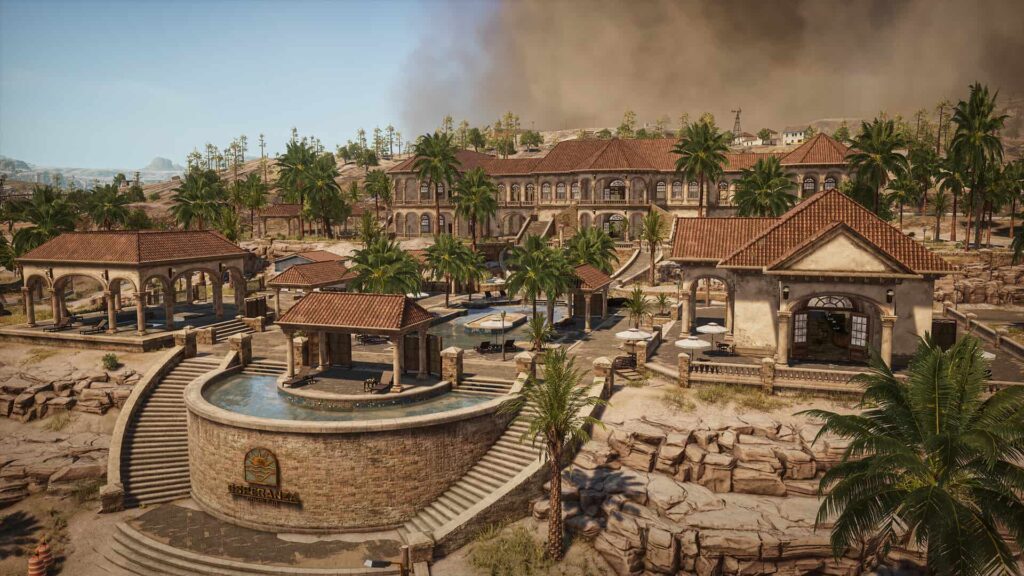
The PUBG graphics settings can be tricky because sometimes they need to be reduced to provide stronger performance. As such, you’ll find that our visual settings don’t focus on the best possible graphics, but instead minimise unnecessary graphical enhancements so that the game can run as fast as possible. Things like shadows and anti-aliasing aren’t as crucial, whereas view distance and FOV make a big difference in what you can see on-screen.
How to set up
Here’s a simple breakdown of the best PUBG graphics settings for PC, plus how you should set them up.
| Basic | Setting |
|---|---|
| Highlights Auto Capture | Disabled |
| Display Mode | Full Screen |
| Resolution | 1920 x 1080 |
| Lobby FPS Cap | Unlimited |
| In-Game FPS Cap | Unlimited |
| Smoothed Frame Rate | Disable |
| Brightness | 65 |
| Universal Brightness For All Maps | Enabled |
| Advanced | Setting |
|---|---|
| Render Scale | 100 |
| FPP Camera FOV | 103 |
| Overall Graphics Quality | Custom |
| Anti-Aliasing | Very Low |
| Post-Processing | Very Low |
| Shadows | Low |
| Textures | High |
| Effects | Very Low |
| Foliage | Low |
| View Distance | High |
| Sharpen | Disable |
| V-Sync | Disable |
| Motion Blur | Disable |
| DirectX Version | DirectX 11 Enhanced |
Note: Your individual graphics settings can be set as high as you want, but you’ll have better FPS with lower settings, especially if you have a low to mid-range PC.
Best PUBG crosshairs and HUD
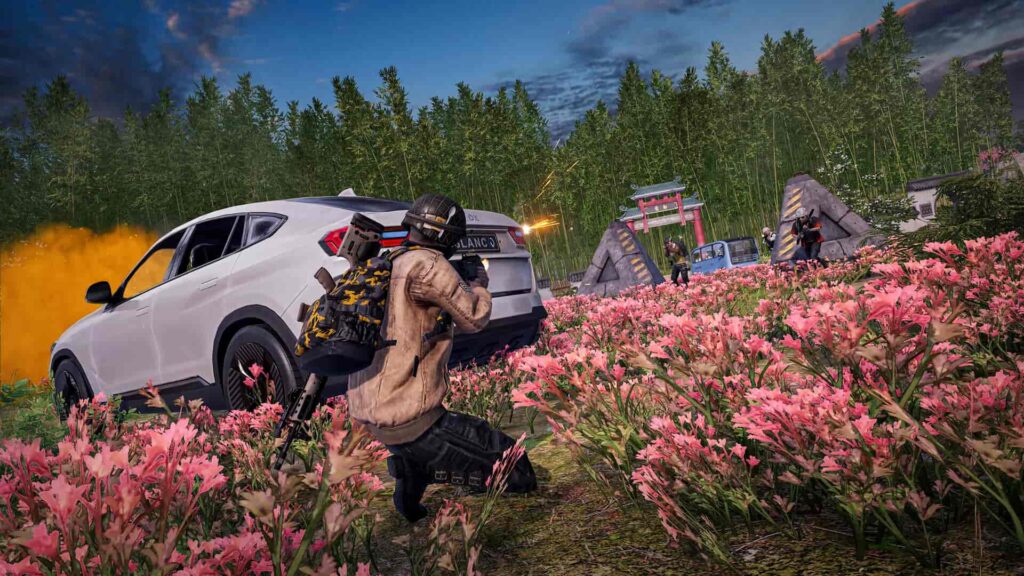
The HUD and crosshair in a competitive shooter are incredibly important for your in-game performance and aim. PUBG players should adjust these options to suit their preferences, but we’ve recommended a general setup below.
How to set up
Take a look at the table below to find out the best HUD settings in PUBG, which can be changed in the main settings menu.
| Interface | Setting |
|---|---|
| Inventory Character Render | Enable |
| Colour Blind Mode | Normal |
| Crosshair Color | Custom |
| Crosshair Colour – Red | 255 |
| Crosshair Colour – Green | 0 |
| Crosshair Colour – Blue | 0 |
| Crosshair Colour – Alpha | 255 |
| Weapon Slot HUD | Enable |
| Word Map Zoom Sensitivity | 10 |
| Minimap Desaturation | Enable |
| Minimap Dynamic Zoom | Enable |
| Killfeed Limit | 5 |
| Hide Player Nicknames | Disable |
| Interaction Target Highlight | Enable |
| Compass Background | Disable |
| On-Screen Key Guide | Enable |
| On-Screen Key Guide Detail Level | Basic |
| Loot Flash Effect | Pulse |
| Display Whispers While In A Match | Enable |
| Continued Interface | Setting |
|---|---|
| Display Clan Messages While In A Match | Enable |
| Radio Message Display Priority | Dialogue |
| Function | Setting |
|---|---|
| Free Look Interpolation | Enable |
| TPP Aim Camera Position | Reset To Right Shoulder |
| Auto Reload | Enable |
| Default Firing Mode For Handguns | Full Auto |
| Default Firing Mode For SMGs | Full Auto |
| Secondary Default Firing Mode For SMGs | Burst |
| Default Firing Mode For ARs | Full Auto |
| Secondary Default Firing Mode For ARs | Burst |
| Default Firing Mode For DMRs | Full Auto |
| Default Firing Mode For Shotguns | Single |
| Auto Equip Attachments With Interaction Key | Enable |
| Auto Replace Attachments | Enable |
| Auto Equip Attachments From Inventory | Enable |
| Auto Replace Weapon Skin | Enable |
| Hide Helmet | Disable |
| Hide Vest | Disable |
| Livestream Screens | Enable |
| Additional Action Queuing | Enable |
| Highlight Recommended Ammo | Enable |
| Function Continued | Setting |
|---|---|
| Highlight Recommended Equipment | Enable |
| Highlight Recommended Attachments | Enable |
| Delay Exit From Moving Vehicles | Enable |
| Auto Equip Regular Vehicle Skins | Enable |
| Others | Setting |
|---|---|
| Replay | Enable |
| Death Cam | Enable |
| Collect Network Statistics Data | Launch |
| Network Debug Statistics | Enable |
| GPU Crash Report | Enable |
| Collect GPU Crash Data | Disable |
Best PUBG controller settings and sensitivity
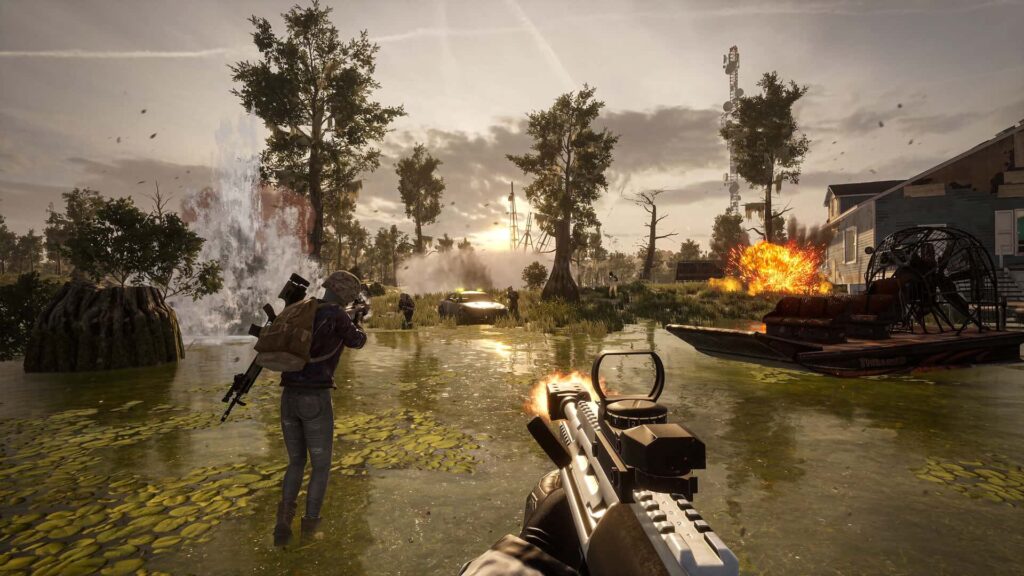
Many PUBG players opt to use a controller instead of a mouse and keyboard. Settings like sensitivity may differ depending on your preferred controller type, which is why we’ve suggested a setup below. Adjusting your controller options may also help you determine the best PUBG settings Xbox or PlayStation players should use.
How to set up
Players can adjust their sensitivity for a mouse and the PUBG controller settings in the main menu.
| Mouse Sensitivity | Setting |
|---|---|
| Invert Mouse | Disable |
| General Sensitivity | 40 |
| Vertical Sensitivity Multiplier | 1.5 |
| Aim Sensitivity | 50 |
| ADS Sensitivity | 40 |
| Scoping Sensitivity | 50 |
| Universal Sensitivity For All Scopes | Disable |
| 2X Scope Sensitivity | 35 |
| 3X Scope Sensitivity | 40 |
| 4X Scope Sensitivity | 40 |
| 6X Scope Sensitivity | 45 |
| 8X Scope Sensitivity | 45 |
| 15X Scope Sensitivity | 50 |
| Controller Sensitivity | Setting |
|---|---|
| Controller Button Preset | Type A |
| Invert X-Axis | Disable |
| Invert Y-Axis | Disable |
| Right Stick Dead Zone | 10 |
| Left Stick Dead Zone | 10 |
| Vibration | Enable |
| Vibration Strength | 5 |
| Forward Running Sensitivity | 50 |
| Movement Sensitivity | 100 |
| Vertical Sensitivity Multiplier | 80 |
| General Sensitivity | 10 |
| Vehicle Driver Sensitivity | 10 |
| Aim Acceleration | Enable |
| Aim Acceleration Rate | 1 |
| Over The Shoulder Aiming Sensitivity | 7 |
| 1X Optic Sensitivity | 7.5 |
| 2X Optic Sensitivity | 8 |
| 3X Optic Sensitivity | 10 |
| 4X Optic Sensitivity | 10 |
| Controller Sensitivity Continued | Setting |
|---|---|
| 6X Scope Sensitivity | 12 |
| 8X Scope Sensitivity | 12 |
| 15X Scope Sensitivity | 13 |
Top competitive PUBG settings
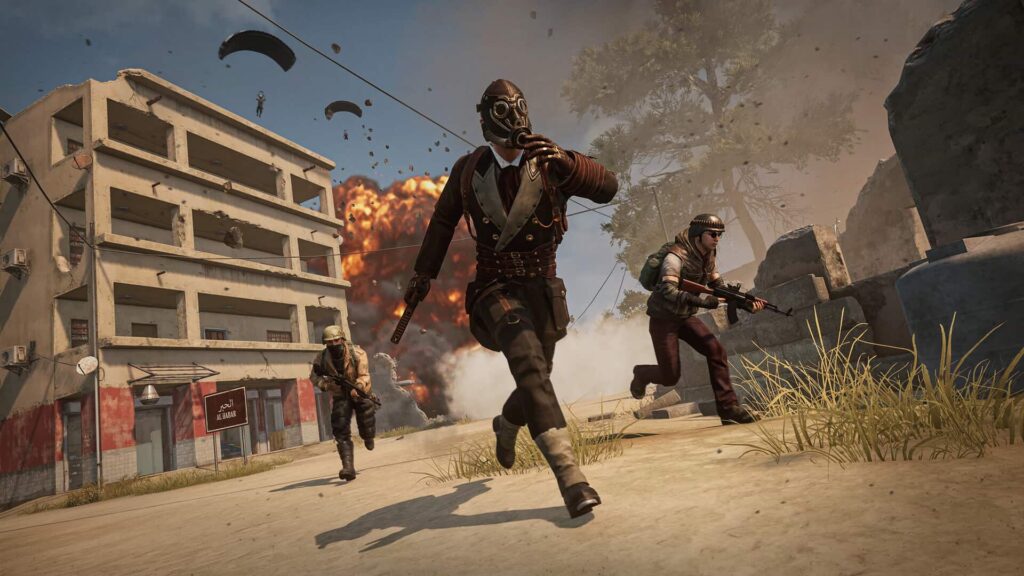
The best PUBG pro settings reduce lag and stutter, even if it means decreasing visual quality in-game. Audio settings need to be adjusted so that you can easily hear nearby footsteps, while finding the best PUBG sensitivity settings improves your aim significantly.
Conclusion
To maximise performance in PUBG: Battlegrounds, players need to take a deeper look at their settings. Adjusting the graphics can reduce lag and improve visibility in-game, while perfecting your audio is essential if you want to hear footsteps coming before it’s too late.
At its core, PUBG is a game of strategic warfare. To come out on top consistently, you need to have the best possible setup, and looking over the settings menu is a quick way to improve your performance.
FAQs
What are the best PUBG settings?
The PUBG best settings in 2025 allow you to hear incoming footsteps, improve FPS, and minimise the effect of recoil.
What is the best graphics setting for PUBG?
PUBG generally runs best in Full Screen mode with 1920 x 1080 Resolution. However, the PUBG best graphics settings may be different based on your device.
Is PUBG better at 400 or 800 DPI?
Generally, 800 DPI offers the best option for balanced gunplay, but you may need to adjust your sensitivity to fit with your preferences.
How to maximise FPS on PUBG?
Maximising frames per second on PUBG may require you to reduce your graphics settings to improve gameplay performance.