TL;DR
- The best Marvel Rivals settings encompass display, graphics, and audio configurations.
- Players can fully customise their mouse, keyboard, and Marvel Rivals controller settings.
- If playing on PC, adjust your sensitivity, DPI, and keybinds based on personal comfort and playstyle.
- Crosshairs can be customised, with profiles saved for each hero.
- Most Marvel Rivals pro settings involve Low graphics quality with V-Sync turned off.
- There’s no one-size-fits-all solution, so play around to find the best settings for you.
Looking for the best Marvel Rivals settings for FPS, performance, and smooth gameplay? Whether you’re a casual player or aiming to climb the ranked ladder, Esports Insider has you covered. In this guide, we’ll break down everything from display, graphics, and audio to console and controller settings to get the most out of your hardware when playing Marvel Rivals.
Marvel Rivals is still a relatively new hero shooter, launched in December 2024, but the good news is that it’s not a graphically demanding game. That means you can achieve great performance even on lower-end PCs, just by using the right settings. Let’s explore Marvel Rivals’ best settings for PC and console, with an eye on boosting FPS, reducing lag, and enhancing your overall experience.
What are the minimum Marvel Rivals system requirements?
According to the official Steam page, NetEase’s hero shooter does not have high system requirements, meaning the Marvel Rivals’ best settings for low-end PCs will be easily attainable.
- Operating System: Windows 10 64-bit
- Processor: Intel Core i5-6600K or AMD Ryzen 5 1600X
- Memory: 16 GB RAM
- Graphics: NVIDIA GeForce GTX 1060 / AMD RX 480 / Intel Arc 1380 or equivalent
- DirectX: Version 12
- Storage: 70 GB available space
To avoid lagging or stuttering, it’s recommended you use a wired Ethernet connection instead of Wi-Fi, update your device drivers, and disable any unnecessary background processes while running Marvel Rivals.
Best Marvel Rivals settings for FPS
Before we explore the best PC settings for Marvel Rivals, there are some things you’ll need to enable to get the maximum performance possible. You may need to restart your PC after enabling some of these options.
- Resizable Bar (ReBAR): This setting allows your CPU to directly access your GPU’s memory. It can be enabled via your computer’s motherboard BIOS settings if compatible.
- Game Mode: This feature prioritises game performance by allocating more resources whenever a game is currently active. You can toggle it on or off by heading to Settings > Gaming > Game Mode.
- Hardware-Accelerated GPU Scheduling: This Windows feature reduces CPU overhead, improving performance by shifting tasks directly to the GPU.
Monitor your system’s performance closely to watch out for any instability or worsening performance. If you experience any issues, revert these changes and go back to basics. To get a closer look at your FPS settings in Marvel Rivals, head to the game settings and enable the option that states “Show FPS.” This will give you a readout that will allow you to see the simple details. If you are looking for something more detailed, there are a few ways to go about it, including the following options:
- Use Windows Game Bar to see your resource usage and a simple yet effective FPS meter.
- If you have AMD’s Radeon Software, utilise the Radeon Overlay, as this gives you graphs related to performance and an FPS counter.
- Consider using a third-party overlay such as RivaTuner, MSI Afterburner or MangoHud (MangoHud is Linux only). These overlays offer features such as graphs for granular frametime, which can be invaluable when it comes to troubleshooting.
Marvel Rivals display settings
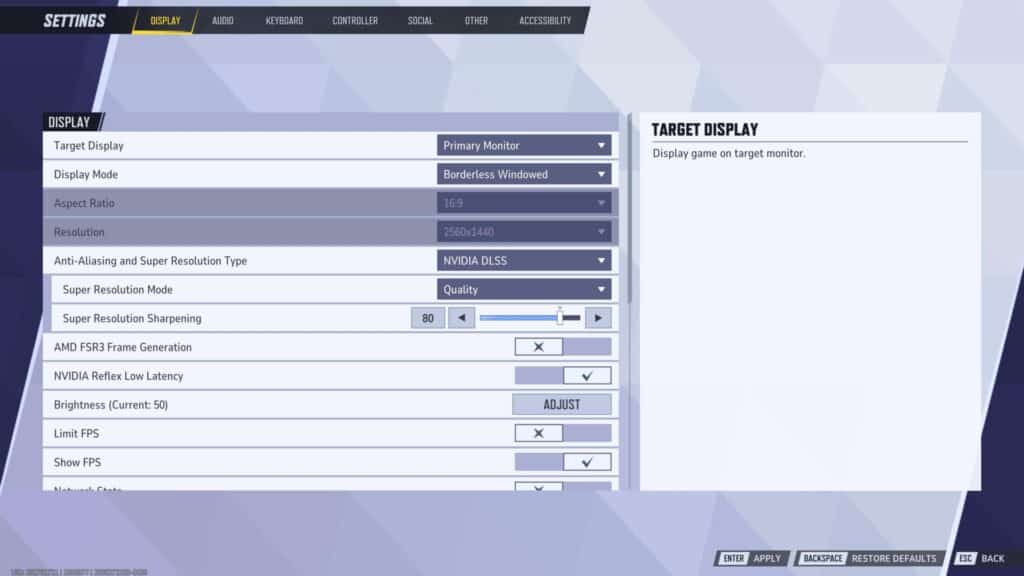
For players looking for the Marvel Rivals performance settings, this section covers the essential tweaks to improve frame rates and gameplay fluidity. We’ve split the table below into low-end, mid-range, and high-end columns for your convenience – these settings should easily give you 60 FPS at a minimum.
| Setting | Low-End | Mid-Range | High-End |
|---|---|---|---|
| Target Display | Primary Monitor | Primary Monitor | Primary Monitor |
| Display Mode | Windowed | Fullscreen | Fullscreen |
| Aspect Ratio | Match Display | Match Display | Match Display |
| Resolution | Match Display | Match Display | Match Display |
| Anti Aliasing and Super Resolution Type | TAUU or Off | DLSS for NVIDIA GPUs or FSR for AMD GPUS | DLSS for NVIDIA GPUs or FSR for AMD GPUs |
| Super Resolution Mode | Quality | Quality | Ultra Quality |
| Super Resolution Sharpening | Preference | Preference | Preference |
| Frame Generation | Off | Off | Off |
| Low Latency Mode | Off | On | On |
| Brightness | Preference | Preference | Preference |
| Limit FPS | Off | Match Display (e.g. 60Hz, 144Hz) | Match Display (e.g. 60Hz, 144Hz) |
| Show FPS | On | On | On |
| V-Sync | Off | Off | Off |
The good thing about Marvel Rivals is that there’s an “Optimise” button that automatically analyses your hardware and makes an educated guess based on your hardware and drivers; there are four presets available: Low, Medium, High, and Ultra.
However, making manual adjustments will yield better results, milking your PC for all the FPS it can get. Here are the best FPS settings for Marvel Rivals in the Graphics section.
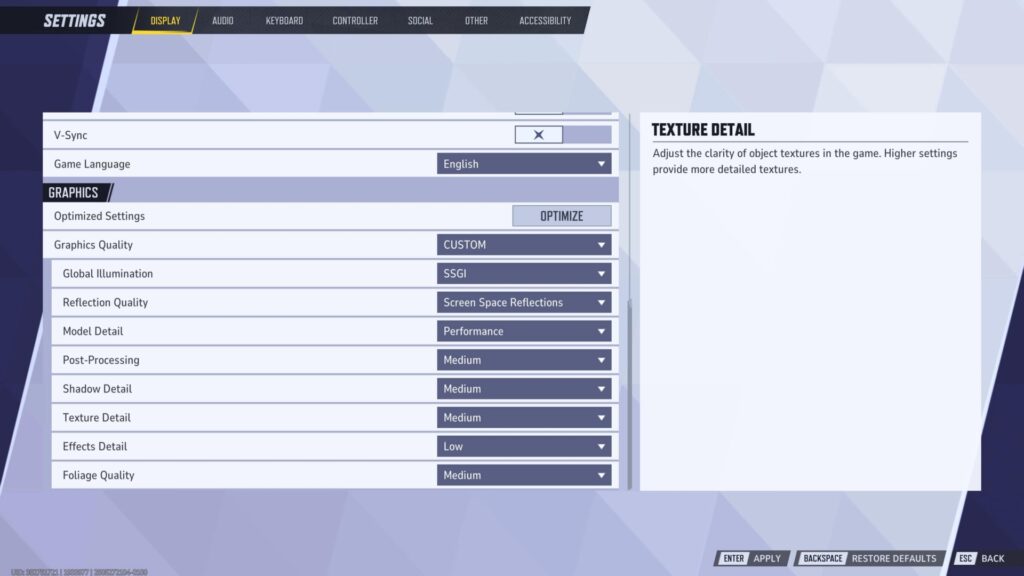
| Setting | Low-End | Mid-Range | High-End |
|---|---|---|---|
| Graphics Settings | Custom | Custom | Custom |
| Global Illumination | Off or SSGI – Low | SSGI – Low | Lumen High |
| Reflection Quality | Off | Screen Space | Screen Space |
| Model Detail | Low | Medium | High |
| Post-Processing | Low | Medium | Medium |
| Shadow Detail | Low | Medium | Medium |
| Texture Detail | Low | Medium | High |
| Effects Detail | Low | Low | High |
| Foliage Quality | Low | Medium | High |
You should now have the optimal configuration for your rig, giving you the maximum possible FPS.
Best Marvel Rivals graphics settings
If you prefer the finer things in life and value beauty over performance, you can always whack the graphics settings up to High or Ultra. However, this will likely result in lower FPS and choppier-feeling gameplay if your system can’t hack it, so choose wisely.
| Setting | Value (Max Visual Fidelity) |
| Resolution | 3840 x 2160p or 2560 x 1440p |
| Display Mode | Fullscreen |
| Graphics Quality | Ultra |
| Global Illuminations | Lumen High |
| Reflection Quality | Lumen Reflections |
| Model Detail | Ultra |
| Texture Detail | Ultra |
| Anti-Aliasing | TAA |
| Post Processing | Ultra |
| Shadow Detail | Ultra |
| Effects Quality | Ultra |
| Foliage Quality | Ultra |
| Ambient Occlusion | Ultra |
| V-Sync | Off |
Best Marvel Rivals console settings
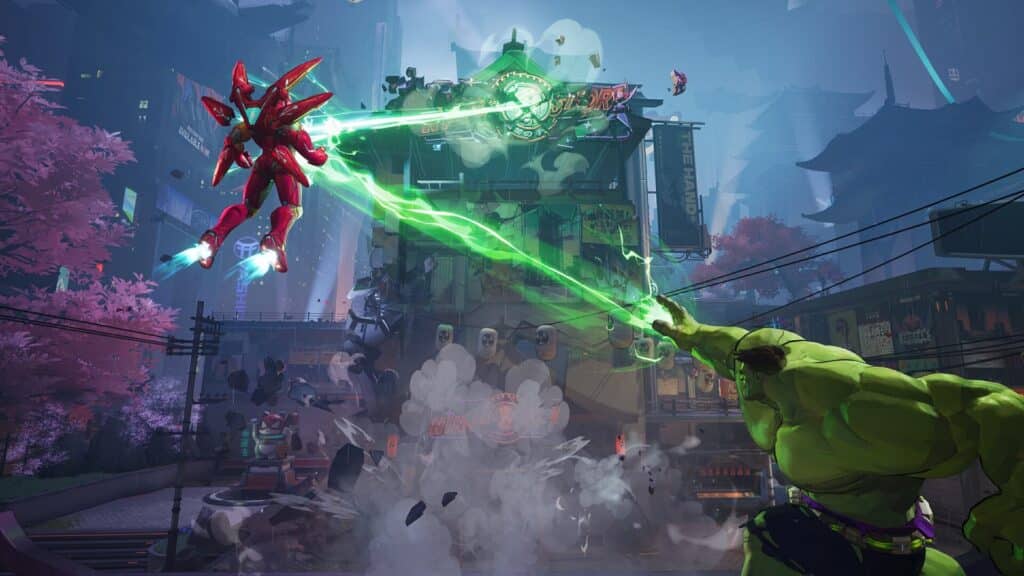
In contrast to PC, the best Marvel Rivals console settings for PS5 and Xbox are more limited, but there are some small tweaks you can make to improve your Marvel Rivals console experience.
| Setting | Value |
|---|---|
| Graphics Mode | HFR (High Frame Rate) Mode |
| V-Sync | On |
| KO Sounds and Enemy KO Announcements | On |
| Allied Health Bars | On |
| Show FPS | Off |
| Rendering Mode | Performance |
Switching on HFR Mode will allow you to achieve 120 FPS, so long as your TV or monitor is capable of doing so. In contrast to PCs, it’s recommended to enable V-Sync to reduce screen tearing, but be wary of possible input lag.
It’s also recommended to enable “KO Sounds and Enemy KO Announcements” via Sound > Combat Mix, so you can stay dialled into the battlefield and be more aware of what’s going on.
Best Marvel Rivals controller settings
The best Marvel Rivals controller settings are a different story. They can be used on PS5 or Xbox Series X/S, depending on your preferred platform. PC players can also use a gamepad or controller if they’d rather skip the hassle and steeper learning curve of a keyboard and mouse.
Below, we’ve outlined our recommended controller settings for Marvel Rivals:
| Input | Value |
|---|---|
| Cursor Sensitivity | 130 |
| Vibration | Off |
| Trigger Effect | Off |
While Vibration and Trigger Effects can add to the game’s immersion, they can be a distraction, especially when you’re playing competitively. Since they don’t add any gameplay value and can be more of a hindrance than a help, we recommend switching both of these options off.
There’s not going to be a one-size-fits-all solution for the best Marvel Rivals controller settings, but we have a few recommendations if the default feels too slow for you.
For things like controller sensitivity in combat, it’s down to your preference. Play around with the deadzones of the sticks and see what works for you. We recommend practising before fully sending it into a ranked game; you don’t want to be caught looking at the ground mid-teamight because your sensitivity is too slow.
| Input | Value |
|---|---|
| Horizontal Sensitivity | 175 |
| Vertical Sensitivity | 175 |
| Aim Sensitivity Curve | Linear Curve |
| Minimum Input Deadzone | 0 |
| Maximum Input Deadzone | 1 |
| Max Deadzone Sensitivity Boost | 15 |
| Horizontal Max Deadzone Response Time | 30 |
| Swap Left & Right Sticks | Off |
| Invert Horizontal Look | Off |
| Invert Vertical Lock | Off |
For these Marvel Rivals aim assist settings, it depends on what you feel most at home with using. Be aware that with Aim Assist, you may find you’re accidentally locking onto a target you don’t want to fight at that time, so turning down Aim Assist Strength may solve that issue.
| Input | Value |
|---|---|
| Aim Assist Window Size | 50 |
| Aim Assist Strength | 100 |
| Projectile Heroes Aim Assist Ease In | 80 |
| Hitscan Heroes Aim Assist Ease In | 40 |
| Melee Heroes Aim Assist Ease In | 0 |
| Disable Aim Assist at Max Deadzone | Off |
Marvel Rivals mouse & keyboard settings
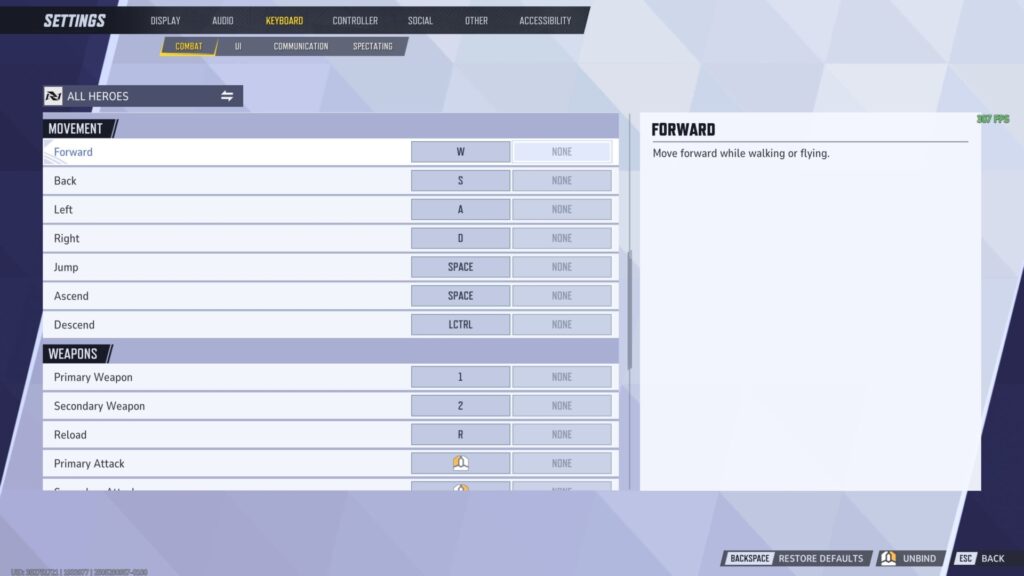
This is, by far, the hardest setting to quantify, since everyone’s preferred mouse sensitivity and key bindings will be different. Factors such as gear also play a massive role, like if your mouse has side buttons.
Here we’ll just outline the default configurations for mouse and keyboard; feel free to tailor them to suit your setup.
| Mouse Settings (Default) | Keyboard Controls (Default) |
|---|---|
| Horizontal Sensitivity: 4.00 | Move Forward: W |
| Vertical Sensitivity: 4.00 | Move Back: S |
| Invert Horizontal Look: Off | Move Left: A |
| Invert Vertical Look: Off | Move Back: D |
| Mouse Smoothing: Off | Jump/Ascend: Space |
| Mouse Acceleration: Off | Descend: L-CTRL |
| Center Mouse in Background: Off | Primary Weapon: 1 |
| Raw Input: Off | Secondary Weapon: 2 |
| Primary Attack: Left Mouse Button | |
| Secondary Attack: Right Mouse Button | |
| Reload: R | |
| Melee Attack: V | |
| Ability 1: E | |
| Ability 2: L-Shift | |
| Ability 3: F | |
| Ultimate: Q | |
| Team-Up Ability 1: Z | |
| Team-Up Ability 2: X | |
| Team-Up Ability 3: C |
The main tip we have for key bindings is make sure your important abilities are easily accessible, such as Ability 1, Ability 2, Ultimate, etc, and do not neglect your Team-Up Abilities, either.
With the release of season 6 of Marvel Rivals, a new feature has been included to optimise mouse performance. The new high polling rate mouse experimental optimisation setting can be found under Settings and then Keyboard. This can resolve any lag-related issues, resulting in swift, smooth mouse gameplay.
Best Marvel Rivals crosshair settings
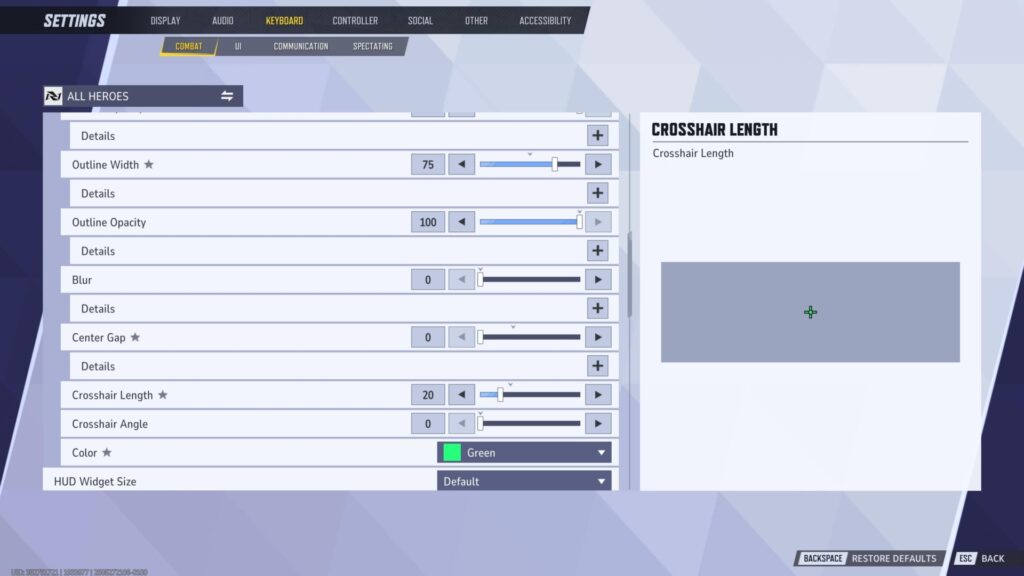
This is, again, all down to your personal preference; some people like a circle for their sights while others prefer the traditional static reticle. We’ll just go over a basic reticle setting favoured by a lot of players looking to be more precise, and you can adjust accordingly.
Any changes you make to your Marvel Rivals crosshair settings are shown in real-time to the right of the settings menu.
- Reticle Type: Crosshairs
- Reticle Animation: Off
- Reticle Width: 15
- Reticle Opacity: 100
- Outline Width: 75
- Outline Opacity: 100
- Blur: 0
- Centre Gap: 0
- Crosshair Length: 20
- Crosshair Angle: 0
- Colour: Green or Blue (Or whatever stands out to you the most)
Don’t forget to “Save Reticle” if you want to keep your crosshair settings. You can make multiple crosshair presets, which you can switch between, or make a custom crosshair for all your favourite heroes.
How to make custom settings for each hero
Similar to Overwatch 2, each Marvel Rivals hero uses different weapons and abilities. As such, you may find that instead of one crosshair, you’ll need an individual reticle for each hero, with tailored settings like sensitivity.
Luckily, you can easily customise your settings for all Marvel Rival heroes on both PC and console by following these simple steps.
- Go into Marvel Rivals settings.
- Navigate to the ‘Keyboard’ or ‘Controller’ tab, depending on what you’re using.
- Choose either ‘Combat’ or ‘UI,’ depending on what you want to change.
- Select ‘All Heroes.’
- Find the hero you’d like to change.
- Any settings you change from now on will only affect the chosen character.
If you’re creating custom crosshairs for each character, keep in mind the weapon they use. For example, The Punisher uses a shotgun as one of his weapons, so a wider circle crosshair may work better to encompass his weapon spread at close range. In contrast, Black Widow uses a sniper rifle and may benefit from a smaller reticle like the dot for pinpoint accuracy.
Here are some examples of useful custom Dual-Zone S-Curve controller and aim settings for some of the heroes in Marvel Rivals. This information comes from a Reddit post by @WholeUnique60. Be sure to check out their post in full for a complete list of recommended settings for every single character in the game
Cloak & Dagger – Strategist
Suggested settings:
- Aim Sens Curve Type: Dual-Zone S-Curve
- Character Movement Min/Max: 12/85
- Close-Range Aim Assist: OFF
- Custom Min/Max Range: 31/86
- Disable Aim Assist at Max Deadzone: OFF
- Ease In: 33
- Eye-Gaze: 3/23
- H/V Sens: 208/120
- Max Dual-zone Curve: 44
- Min Curve Stats: 38
- Response Times: 24/24
- Sensitivity Boost: 0/0
- Strength: 90
- Window Size: 24
Emma Frost – Vanguard
Suggested settings:
- Aim Sens Curve Type: Dual-Zone S-Curve
- Character Movement Min/Max: 12/85
- Close-Range Aim Assist: OFF
- Custom Min/Max Range: 32/86
- Ease In: 32
- Eye-Gaze: 2/2
- Hold to Activate Mind Controller: OFF
- Hold to Activate Psionic Barrier: ON
- Hold to Activate Telepathic Pulse: ON
- H/V Sens: 208/118
- Max Dual-zone Curve: 42
- Min Curve Stats: 40
- Response Times: 22/22
- Sensitivity Boost: 0/0
- Strength: 90
- Window Size: 26
Magik – Duelist
Suggested settings:
- Aim Sens Curve Type: Dual-Zone S-Curve
- Character Movement Min/Max: 12/84
- Close-Range Aim Assist: OFF
- Custom Min/Max Range: 31/86
- Disable Aim Assist at Max Deadzone: OFF
- Ease In: 24
- Eye-Gaze: 3/3
- H/V Sens: 222/126
- Max Dual-zone Curve: 48
- Min Curve Stats: 40
- Response Times: 20/20
- Sensitivity Boost: 0/0
- Strength: 94
- Window Size: 24
Rocket Racoon – Strategist
Suggested settings:
- Aim Sens Curve Type: Dual-Zone S-Curve
- Auto Reload: ON
- Character Movement Min/Max: 10/80
- Close-Range Aim Assist: OFF
- Custom Min/Max Range: 30/86
- Direction of Wall Crawling: Towards Crosshair
- Disable Aim Assist at Max Deadzone: OFF
- Ease In: 32
- Eye-Gaze: 2/2
- Hold to Fall Slowly: ON
- Hold to Run on Wall: OFF
- H/V Sens: 220/124
- Max Dual-zone Curve: 44
- Min Curve Stats: 36
- Response Times: 20/20
- Sensitivity Boost: 0/0
- Strength: 88
- Window Size: 25
Star-Lord – Duelist
Suggested settings:
- Aim Sens Curve Type: Dual-Zone S-Curve
- Character Movement Min/Max: 12/84
- Close-Range Aim Assist: OFF
- Custom Min/Max Range: 30/86
- Disable Aim Assist at Max Deadzone: OFF
- Ease In: 26
- Eye-Gaze: 2/2
- H/V Sens: 220/126
- Max Dual-zone Curve: 44
- Min Curve Stats: 38
- Response Times: 20/20
- Sensitivity Boost: 0/0
- Strength: 92
- Window Size: 25
Thor – Vanguard
Suggested settings:
- Aim Sens Curve Type: Dual-Zone S-Curve
- Character Movement Min/Max: 12/84
- Close-Range Aim Assist: OFF
- Custom Min/Max Range: 31/86
- Disable Aim Assist at Max Deadzone: OFF
- Ease In: 32
- Eye-Gaze: 2/2
- H/V Sens: 216/124
- Max Dual-zone Curve: 46
- Min Curve Stats: 38
- Response Times: 22/22
- Sensitivity Boost: 0/0
- Strength: 92
- Window Size: 23
Best Marvel Rivals audio settings
While audio settings won’t have an impact on your FPS in Marvel Rivals, they can impact your combat awareness. Most of these are volume sliders that can be turned up or down depending on what you prefer.
Clear audio can make the difference between an L and an easy win, as a result, we recommend you use over-ear headphones instead of speakers. This simple change can help you more accurately listen out for crucial combat cues like enemy abilities being used or nearby footsteps.
When you’re using headphones, it’s crucial to switch on “3D Enhancement,” which improves sound directionality and makes it easier to pinpoint sound sources. If you’re using this setting, make sure that your Windows spatial audio enhancement is not enabled at the same time.
A good rule of thumb, no matter what game you’re playing, is to disable unnecessary noises (such as music) to focus on in-game SFX and team communications. As such, we recommend turning Music Volume all the way down to 0 to minimise distractions. In the same vein, turn up In-Game Voice Volume to 100 so you can easily hear important sounds like ability voice lines..
If you’re using in-game voice chat, it’s common courtesy to switch on “Push to Talk” and have it toggled to an easily-accessible key binding. This is so you only communicate with your team when it’s essential;no one wants to hear you flaming or spamming your keyboard. You should also turn your Voice Chat Volume down to a mid-range level, such as 50, so it’s not overpowering the in-game SFX and audio cues.
Best Marvel Rivals social settings
Social settings do not affect gameplay, FPS, or any other factors of that nature in Marvel Rivals. What they do is allow you to control your socialisation options, so you can be as private or as social as you please. Some of these settings can affect you when playing ranked, as if you have your Statistics Visibility set to everyone, then players on the enemy team can look you up and see which heroes you have played and won the most games with. This can then lead to bans of the heroes you main or effective counter strategies, so keep that in mind if you want your stats to be visible to all players.
The social settings in Marvel Rivals are as follows:
| Social category | Social setting | Options |
|---|---|---|
| Career Profile | Overview Visibility | Everyone, Private, Friends only, Team only, Faction only |
| Career Profile | Statistics Visibility | Everyone, Private, Friends only, Team only, Faction only |
| Career Profile | History Visibility | Everyone, Private, Friends only, Team only, Faction only |
| Chat | Allow Match Messages (Discord, Whisper, Team, Match, Faction, and Spectator). | Everyone, Private, Friends only, Team only, Faction only |
| Chat | Custom Chat Filter Words | Can be added or managed |
| Social | Allow Friend Requests | On or off |
| Social | Cross Platform | On or off |
| Social | Enable Gifts from Friends | On or off |
| Social | Allow Spectating | Open to All, Friends only or No Spectating |
| Social | Invitation to Team/Room | Everyone, Friends only or Decline all invites. |
| Social | Connect to Discord | Connect or disconnect(PC only) |
| Social | Avoid As Teammate | Manually manageable (players can only avoid three players at a time). |
| Social | Blocklist | Manually manageable. Blocked players appear in this section. |
| Social | Streaming Mode | On or off |
| Social | Advanced Streaming Mode | On or off options or hiding your own name in competitive and for muting pings upon chat block. |
Best Marvel Rivals accessibility settings
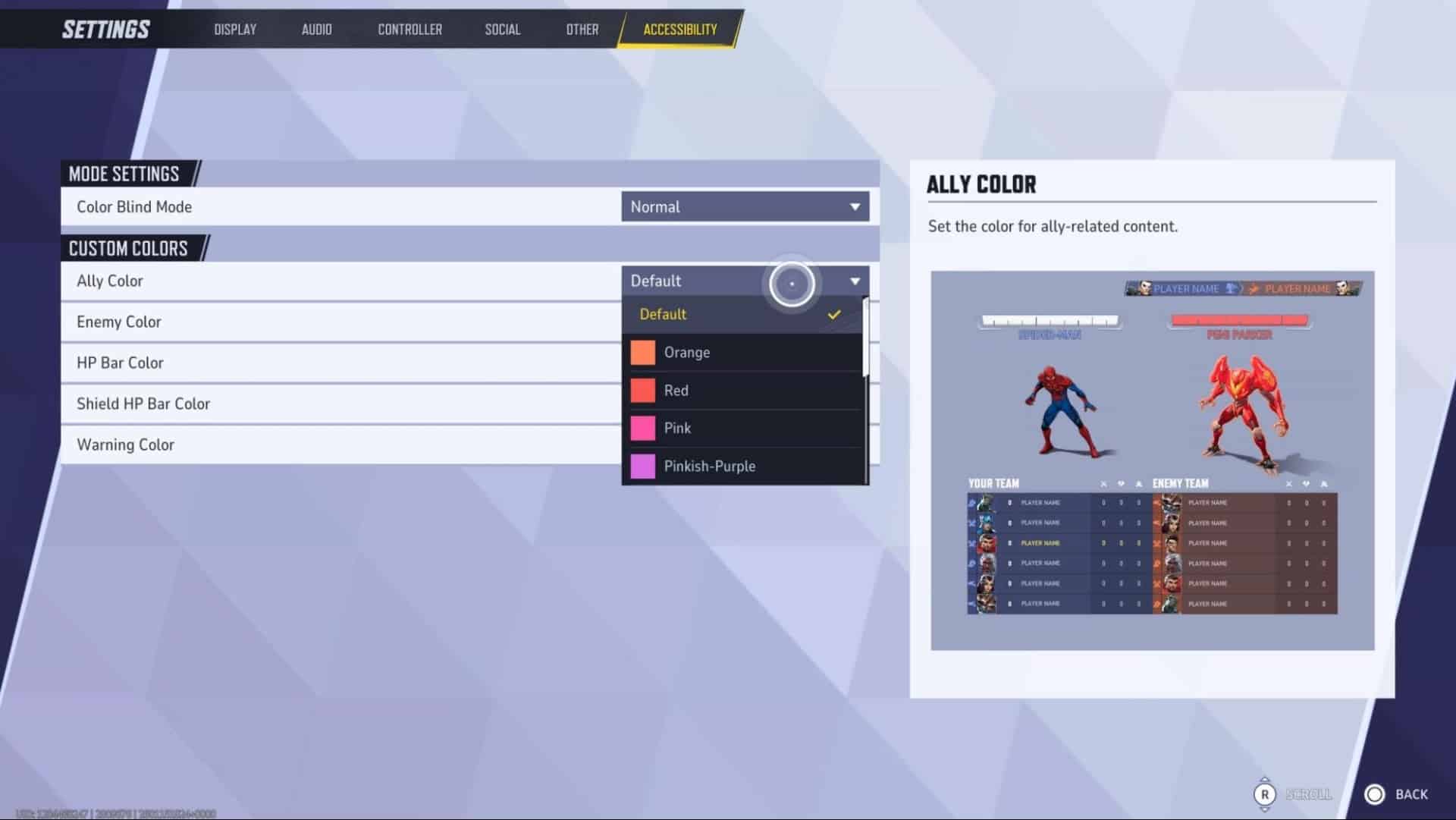
There are also accessibility settings aimed at people with visual impairments that can make things clearer for those who need them.
At the time of writing, the only mode setting for accessibility is Color Blind Mode, which offers three options (alongside the normal option). These options are:
- Deuteranopia (Green Blind)
- Protanopia (Red Blind)
- Tritanopia (Blue Blind)
There are also custom colours available for the colours of allies, enemies, in-game warnings, the HP Bar and the Shield HP bar. Along with the default colours, the other options available for these features are orange, pink, pinkish-purple and red.
What Marvel Rivals settings do the pros use?
We’ve got a handle on casual optimisations, but what about Marvel Rivals pro settings? The esports scene for Marvel Rivals is still growing, but we can see how popular content streamers (and ex-pro players) like TenZ, Shroud, and Necros have their settings and gear.
| Gear/Setting | Tyson “TenZ” Ngo | Michael “shroud” Grzesiek | Vladan “Necros” Konstantinov |
|---|---|---|---|
| Mouse | Pulsar TenZ Signature Edition | Logitech G Pro X Superlight 2 Dex Black | Lamzu Atlantis Mini Pro |
| DPI | 1600 | 1600 | 3200 |
| eDPI | 768 | 1600 | 2400 |
| Vertical Sensitivity | 0.48 | 1.0 | 0.75 |
| Horizontal Sensitivity | 0.48 | 1.0 | 0.75 |
| Keyboard | Wooting 80HE Black | Logitech G Pro X TKL Rapid Black | Wooting 60HE+ |
| Resolution | 1920 x 1080 | 2560 x 1440 | 2560 x 1440 |
| Display Mode | Windowed Fullscreen | Fullscreen | Windowed Fullscreen |
| V-Sync | Off | Off | Off |
| Reflection Quality | Screen Space Reflections | Off | Screen Space Reflections |
| Model Detail | Unknown | Low | High |
| Shadow Detail | Low | Low | Low |
| Texture Quality | Low | Low | High |
| Effects Detail | Low | Low | Low |
Source: prosettings.net
When analysing these three Marvel Rivals players, you can see that their eDPI, DPI, and in-game sensitivities vary massively, showing it’s all down to personal preference and how you like to aim.
In terms of Marvel Rivals competitive settings, they all mostly play with their graphics settings tuned to Low, to reduce visual clutter and improve reaction times. The exception is Necros, who has Model Detail turned up to High, likely to see enemies and allies clearer.
Additionally, V-Sync is kept off to ensure an uncapped FPS amount. While not included on the table, all three players all have their brightness kept to the default at 50. We recommend experimenting with different setups if you want to play ranked Marvel Rivals on PC like a pro.
Conclusion
At the end of the day, there’s no one-size-fits-all solution when it comes to finding the best settings for Marvel Rivals. You can use our recommendations as a solid starting point – but feel free to experiment. You can adjust and test these as many times as you want to find that perfect balance that helps you play your best.
Take your new settings out for a spin in the Practice Range to test out your new settings and get ready to climb those ranks. With the right setup and chosen hero, you’ll be landing clean headshots, dodging abilities, and making the most of every Marvel Rivals match!
FAQs
Should V-Sync be on or off in Marvel Rivals?
It’s recommended to turn V-Sync off to minimise input lag. If you’re experiencing screen-tearing, though, you should enable V-Sync to combat this.
What is the best anti-aliasing and super resolution for Marvel Rivals?
Use DLSS for NVIDIA GPUs and FSR for AMD GPUs to improve performance. For the Super Resolution Mode, you can set it to Quality without having a negative impact. Use DLSS for NVIDIA GPUs and FSR for AMD GPUs to improve performance. For the Super Resolution Mode, you can set it to Quality without having a negative impact.
How do I make Marvel Rivals more vibrant?
To make Marvel Rivals more vibrant, increase your monitor’s colour settings like saturation and increase the graphical settings to Medium or High.
What are the best settings for Marvel Rivals?
Marvel Rivals offers an automatic “Optimize Settings” button which adjusts your settings according to your rig’s capabilities, but this just serves as a rough guideline. Many pros play with their settings turned down to Low, but there is no one-size-fits-all solution. Play around with the graphical settings and see what works for you.
How do I make Marvel Rivals less blurry?
To reduce blurriness in Marvel Rivals, adjust the Super Resolution Mode, disable Frame Generation, and experiment with other settings like Texture Detail and Model Detail.
What DPI should I use for Marvel Rivals?
Your DPI should be set to what you feel the most comfortable with. For most players, this is between 800 and 1600.
REFERENCES
- Marvel Rivals (Steam Store)
- Marvel Rivals Version 20260116 Patch Notes: Season 6 Begins! (Marvel Rivals)
- The BEST Marvel Rivals Controller Settings, Crosshair, & SECRET Spider-Man Setting QUICK Guide (YouTube)
- ULTIMATE Season 5 Controller Settings Guide for ALL Heroes in Marvel Rivals (Reddit)
- Marvel Rivals Pro Settings and Gear List (ProSettings)